Image to PNG Converter: Convert JPG, WEBP, and HEIC Free
Use this image to png converter to turn JPG, WEBP, or HEIC into PNG in four steps. Files stay on your device, no upload or sign-up. Learn when PNG fits.
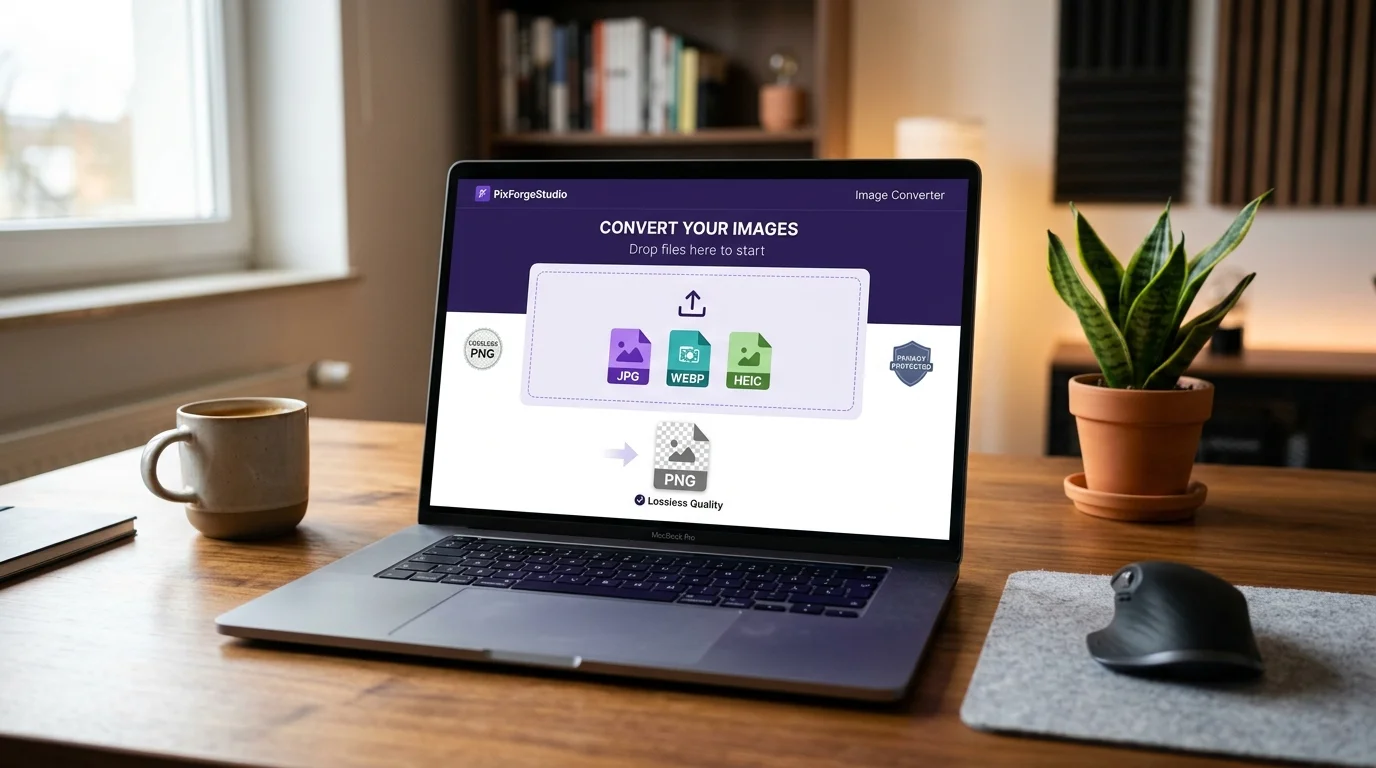
You have a JPG, WEBP, or HEIC file and need a PNG. Maybe a website rejects your format, or you want a lossless copy with a transparent background. Most converters make you install software, create an account, or upload your photo to a server you know nothing about.
You can skip all of that. A free image to png converter that runs in your browser does the job in seconds. You pick the file, choose PNG, and download the result. Nothing gets uploaded, because the conversion happens on your own device. There is no sign-up, no watermark, and no email prompt.
This guide shows you how to use the PixForgeStudio image converter step by step. You will see how to convert JPG, WEBP, and HEIC files, what to expect from file size and quality, and when PNG is the right choice over JPG. It also covers a few fixes for the problems people hit most often, so you can finish the task and move on.
Why convert images to PNG
PNG is the format to reach for when quality and compatibility matter more than file size. Before you open any online image to png converter, it helps to know what you gain and what you do not.
What PNG does better
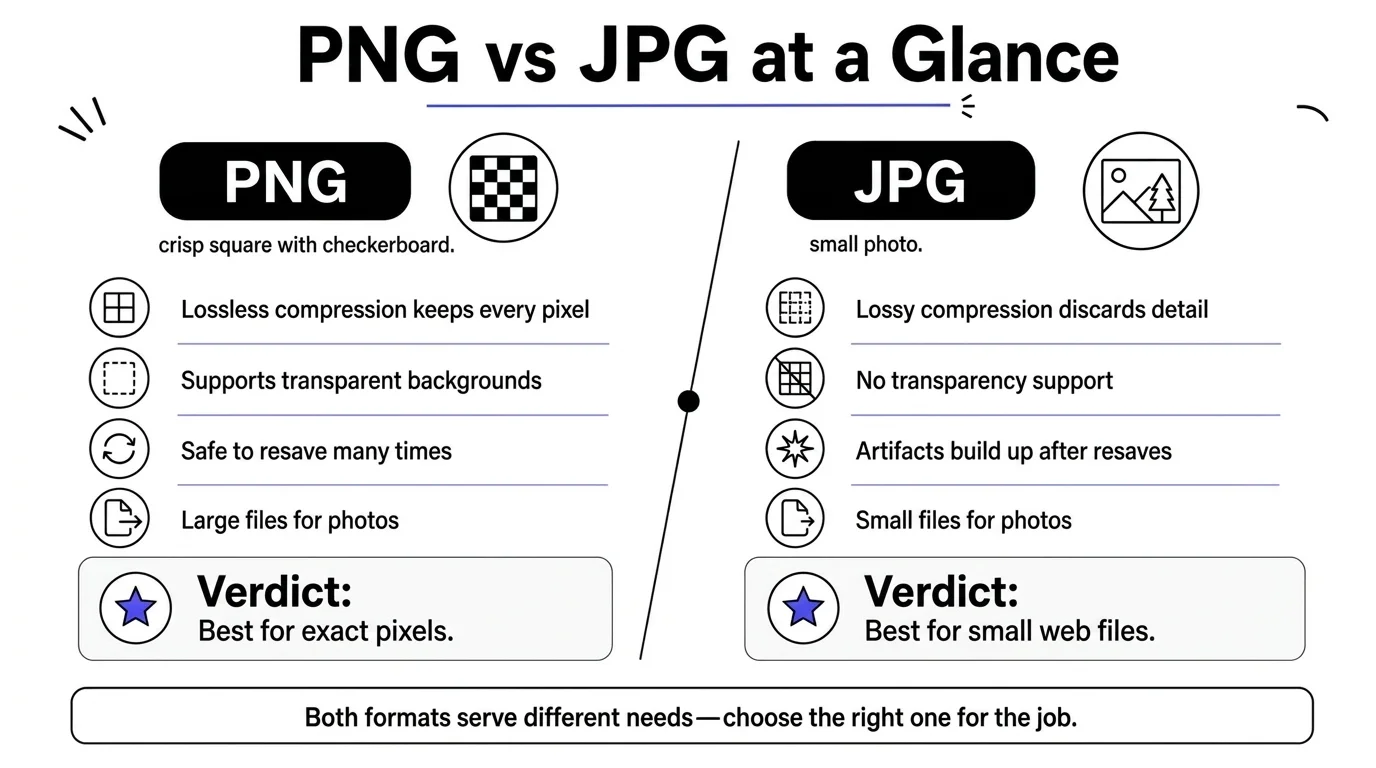
Lossless compression is the main reason people choose PNG. Every pixel stays exactly as saved, so you can reopen and resave the file without it getting worse. PNG also supports alpha transparency, which JPG cannot do at all. Here is how the common formats compare:
| Format | Compression | Transparency | Where it causes trouble |
|---|---|---|---|
| PNG | Lossless | Yes | Large files for photos |
| JPG | Lossy | No | Artifacts after repeated saves |
| WEBP | Lossy or lossless | Yes | Older editors and some upload forms reject it |
| HEIC | Lossy | Rarely used | Windows, many websites, and print services |
When a conversion makes sense
Screenshots, logos, diagrams, and text-heavy graphics are the best candidates, because PNG keeps edges sharp. iPhone photos in HEIC and web images in WEBP are the usual troublemakers, and a free image converter to png fixes the format problem in one step. These are the situations where I would convert:
- A website, form, or app rejects your WEBP or HEIC upload.
- You want to keep transparency from a WEBP or an existing PNG logo.
- You plan to edit the image several times and want no quality loss between saves.
- You need a crisp screenshot or diagram for a slide deck or document.
What conversion cannot fix
Converting a JPG to PNG does not restore detail that JPG compression already threw away. The PNG will look the same as the source, and the file will usually be several times larger.
“Converting to PNG preserves what you have, but it never adds back what is missing.”
Keep that in mind for photos. If your goal is a small file for a web page, JPG or WEBP is often the better final format. Choose PNG when you need exact pixels, transparency, or a format that every program accepts.
Step 1. Open the converter and add your image
Start on the PixForgeStudio homepage. The whole process takes under a minute, and it works the same on desktop and mobile.
Find the converter
You have two ways in. Use the search box in the tool library, or browse the Image tools category. Either way, you land on the same online image to png converter.
- Go to pixforgestudio.com.
- Search for "image converter" or open the Image tools category.
- Select the converter. It opens right away, with no login screen.
Because everything runs on JavaScript and WebAssembly inside your browser, there is nothing to install. This image file converter to png is just a page.
Add your image
Drag your JPG, WEBP, or HEIC file onto the drop area. You can also click the area and browse your device to pick it. On a phone, the picker lets you choose from your photo library or your files.
Your image is read by your browser and processed in its memory. It is never sent anywhere.
“Your file never leaves your device, so the converter never sees it.”
That matters if the picture is an ID, a signed contract, or a medical record. Once the file loads, you should see a preview or its name in the tool.
If a HEIC file will not open, browser support for HEIC varies. Try Safari on an Apple device, or export the photo as a JPG first. Then add that file instead.
Step 2. Choose PNG and adjust the settings
Once your file is loaded, tell the tool what you want back. A free online image converter to png should not bury you in options, and this one keeps the choices short.
Select PNG as the output format
Open the output format menu and choose PNG. The tool also lists JPG and WebP, so check that PNG is highlighted before you move on. If you added several files, confirm that the format applies to every one of them.
Review the remaining options
Next, look at what else the tool shows. PNG is lossless, so there is no quality slider to chase. The converted file keeps every pixel from the source.
“With PNG, the format you pick matters more than any setting you adjust.”
If your version of the tool shows any of the options below, here is what I would pick:
| Option | Recommended choice | Why |
|---|---|---|
| Output format | PNG | Lossless, accepted almost everywhere |
| Dimensions | Keep original size | Resizing changes pixels and can soften edges |
| Transparency | Leave it on | A WEBP or PNG logo keeps its clear background |
Leave everything else at its default unless you have a reason to change it. Your original file stays untouched on your device, so you can run the conversion again with different settings at no cost.
Step 3. Convert and download your PNG
With PNG selected, you are ready to run the job. Click the convert button and the image to png converter starts processing the file locally in your browser. A single photo usually finishes in a few seconds, because there is no upload to wait for.
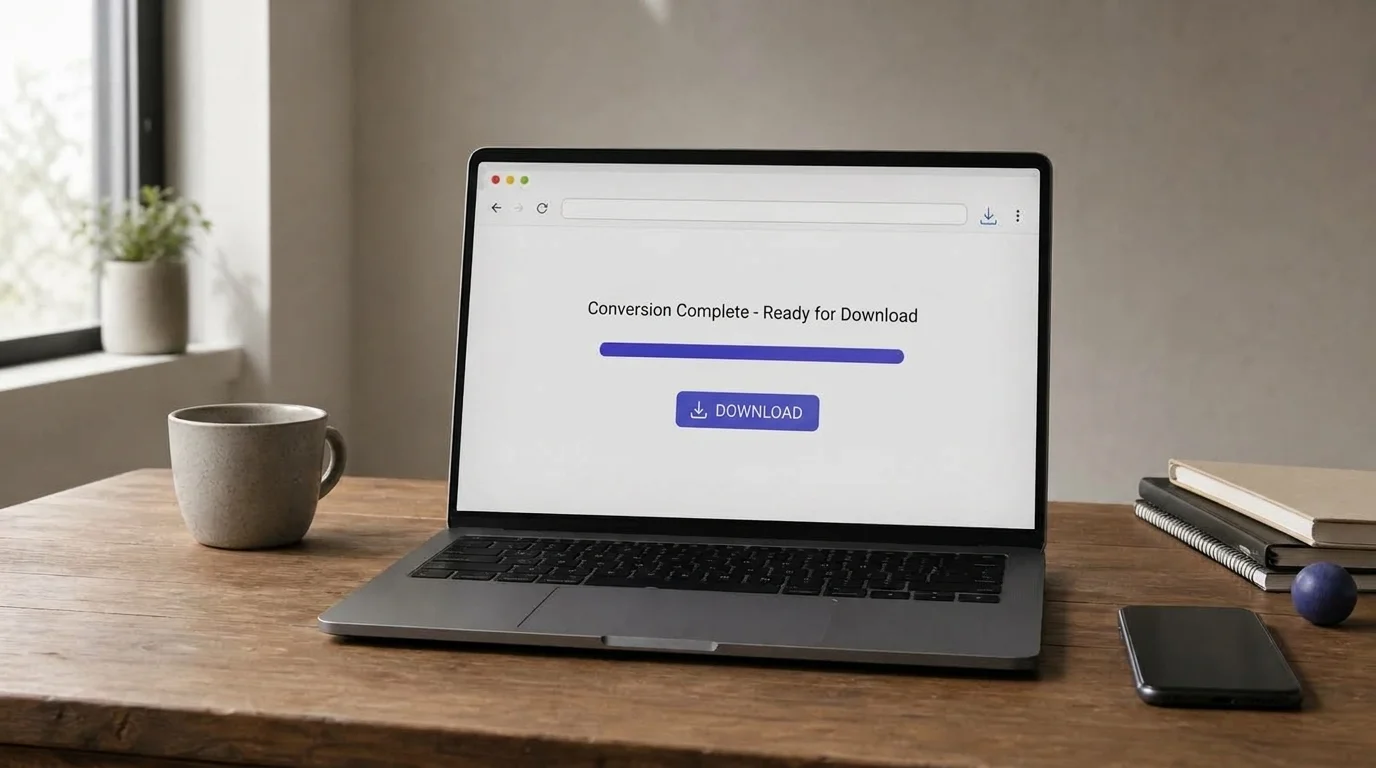
“Your PNG is built in your browser's memory, so downloading it just means saving that result.”
Run the conversion
The sequence is short, and it is the same on desktop and mobile:
- Click the convert button.
- Wait for the progress indicator or preview to finish.
- Click the download button to save the PNG.
Large images take longer. A 24-megapixel photo has far more pixels to encode than a screenshot does. If the page looks stuck, give it a moment and keep the tab open, because closing it cancels the job.
Find your downloaded file
Your browser decides where the file lands. Most desktop browsers save to the Downloads folder, and the name keeps your original filename with a .png extension. On an iPhone, Safari saves to the Files app, and you can use the share sheet to move the PNG into Photos if you want it there.
If you added several images, download each PNG from the results list. Then rename any files that share a name, so a later download does not look like a duplicate. That is all you need from a converter image to png online: pick, convert, save.
Step 4. Check quality, size, and transparency
Before you use the file, spend thirty seconds checking it. A good image to png converter gives you a clean result, but a quick look now saves you from sending a bad file to a client or a website later.
Compare quality and file size
Open the PNG beside your original and zoom to 100 percent. Check text edges, fine lines, and faces. Then compare file sizes in your file manager. A converted photo is often several times larger than the JPG, and that is normal.
| Check | What you should see | If it looks wrong |
|---|---|---|
| Sharpness | Same detail as the source | Convert again from the original file |
| Dimensions | Same width and height | Convert again with "keep original size" |
| File size | Bigger for photos, similar for screenshots | Use JPG or WEBP if size matters |
Confirm transparency
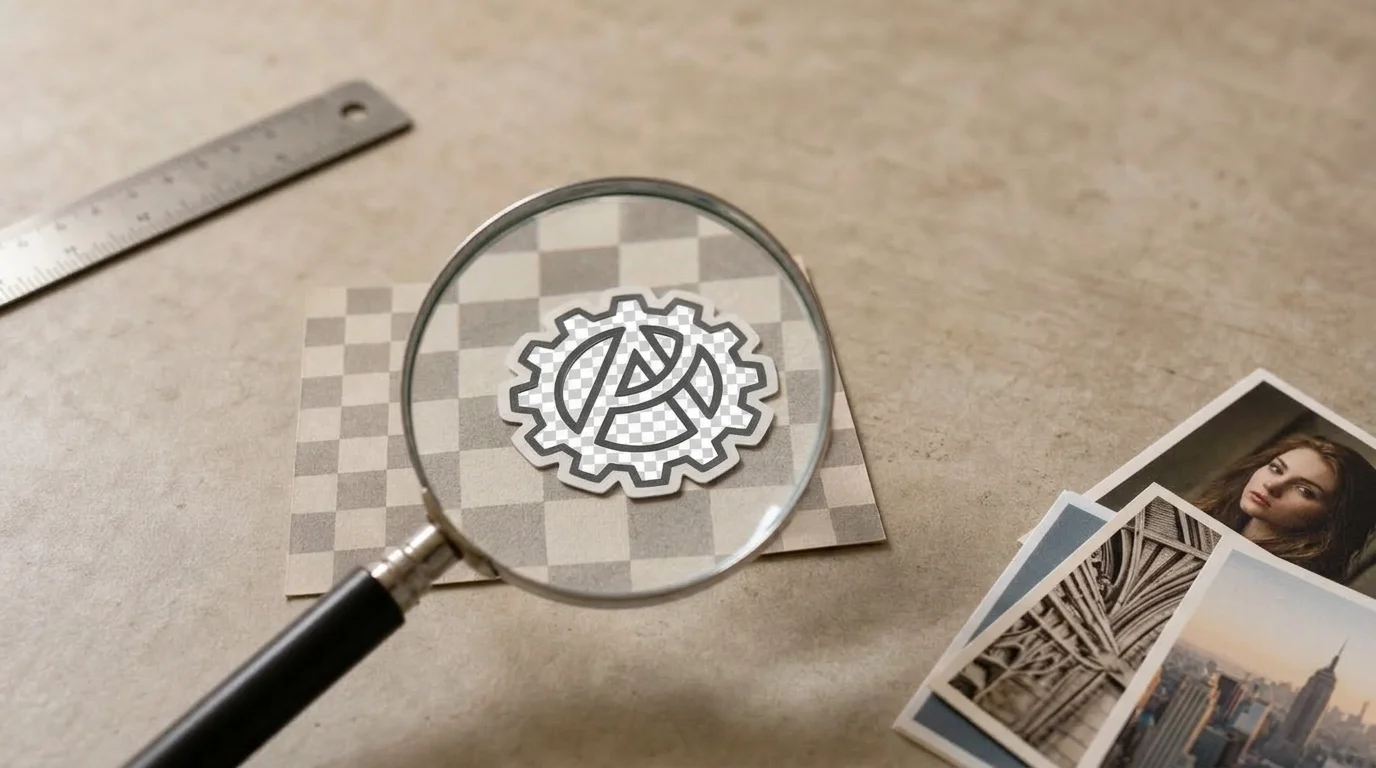
Transparency is the easiest thing to miss, because many viewers show clear pixels as white. Open the PNG in a browser tab or an editor that shows a checkerboard background. If the logo or cutout sits on checkers, the alpha channel survived.
“A PNG only has transparency if the source file had it.”
If your source was a JPG, the background was never clear, and converting will not change that. In that case, run the picture through the background remover first, then export the result as PNG.
Finally, if the file is too heavy for an upload form, any to png image converter will disappoint you, because lossless output is large by design. Keep the PNG as your master copy and export a JPG or WEBP for the web.
Your images, ready as PNGs
Converting an image to PNG takes four moves: open the tool, pick PNG, convert, and check the result. With a browser-based image to png converter, the whole job takes under a minute, and your JPG, WEBP, or HEIC file never leaves your device. You do not need software, an account, or a server you have to trust.
Remember the trade-off. PNG gives you lossless quality and transparency, but it will not restore detail that was already lost, and photos get much larger. Keep the PNG as your master copy, and export a lighter JPG or WEBP when file size matters.
Ready to convert your images to PNG?
Turn your JPG, WEBP, or HEIC photos into crisp PNG files with zero uploads, no watermark, and no registration.
Explore All 140+ Free Tools
PixForgeStudio offers 140+ free browser-based tools: PDF editor & viewer, image compressor, video trimmer, audio transcriber, converters, and calculators. 100% private — zero file uploads.
Browse All Tools