JPEG Image Converter: Convert PNG, WebP, HEIC & More to JPEG Free
Convert any image to standard JPEG format online for free. Support for PNG, WebP, HEIC, GIF, BMP, and TIFF. Fast, private, and runs 100% in your browser.
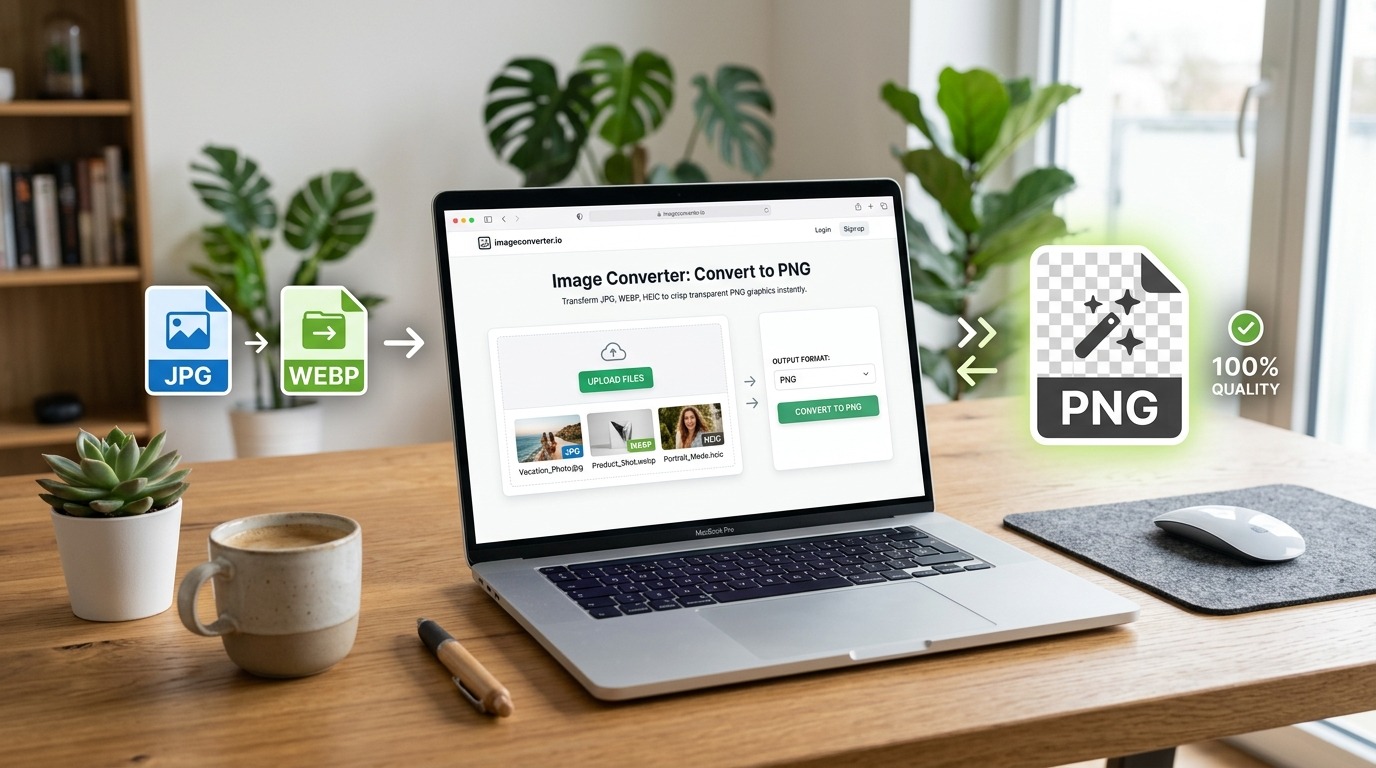
Use the Free JPEG Image Converter Now
Prefer to get straight to work? Skip the guide and use PixForgeStudio's free client-side tool directly on your device with zero cloud uploads and instant processing.
You receive an image in .heic format from an iPhone, download a .webp file from the internet, or get a giant 15 MB .png screenshot. Then your printer, photo kiosk, legacy desktop app, or government submission portal says: "Invalid file type: Please upload a standard JPEG image."
A JPEG image converter bridges this gap instantly. Even with dozens of newer image formats on the market, JPEG (and JPG) remains the single most universally supported visual standard on earth. Every phone, tablet, computer, browser, TV, and printer manufactured over the last thirty years knows exactly how to decode JPEG.
This guide shows how to convert PNG, WebP, HEIC, BMP, and TIFF files to standard JPEG in four easy steps, how to manage transparent backgrounds without creating ugly black boxes, and when to pick JPEG over competing modern formats.
PixForgeStudio Image Format Converter
100% Free • In-BrowserConvert between JPG, PNG, WebP, and other formats.
The universal standard: why JPEG remains essential
Standardized by the Joint Photographic Experts Group in 1992, JPEG remains the backbone of digital photography and consumer imagery. Three unique qualities keep JPEG indispensable:
99.9% Hardware Compatibility
Every digital camera, gaming console, smart TV, car dashboard, and digital photo frame features dedicated hardware silicon to decode JPEG files at zero battery cost.
Strict Portal Mandates
Immigration portals (like US ESTA, Schengen visa), e-commerce marketplaces (eBay, Amazon), and real estate MLS systems require JPEG uploads to ensure consistent rendering.
JPG vs JPEG: No Difference
.jpg and .jpeg are identical. MS-DOS and Windows 95 required 3-letter extensions, while UNIX systems used 4-letter extensions.
How to convert any image to JPEG in 4 steps
With PixForgeStudio's client-side image converter, your pictures are converted locally in your web browser. No photos are ever uploaded or saved on third-party servers:
Upload Source Images
Open the Image Converter tool and drop in your PNG, WebP, HEIC, BMP, or TIFF files. You can upload multiple files at once.
Set Output to JPG / JPEG
Select JPG from the output format menu. The tool will convert any arbitrary input format into standardized JPEG encoding.
Adjust Quality & Background Color
Set the quality slider (88% to 92% is ideal). If converting a transparent PNG, pick a background color (defaults to clean white).
Convert and Save
Click Convert. The browser encodes your JPEG files immediately. Download them individually or as a single ZIP archive.
PixForgeStudio Image Format Converter
100% Free • In-BrowserConvert between JPG, PNG, WebP, and other formats.
Converting PNG to JPEG: what happens to transparency?
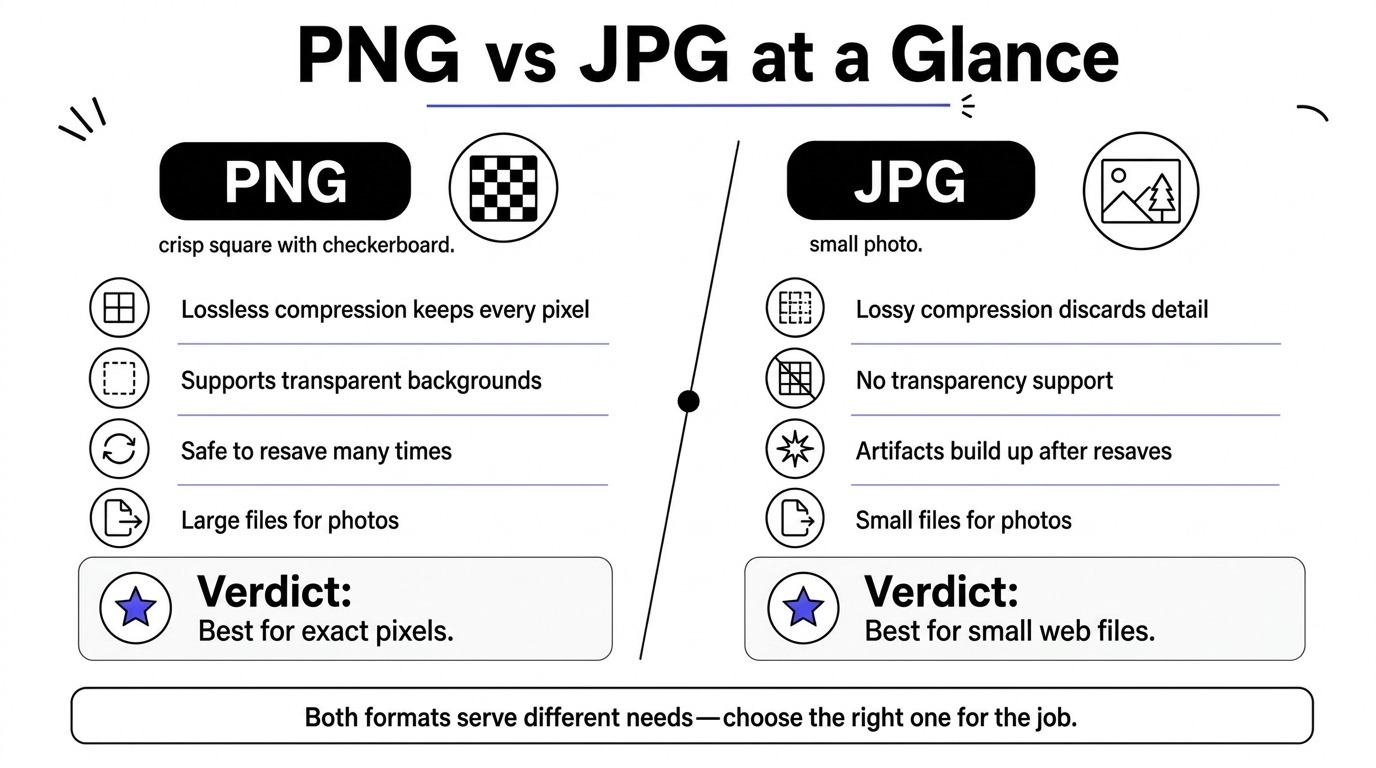
The single biggest surprise users encounter when converting from PNG to JPEG is transparency. PNG contains an alpha channel that tracks translucent and transparent pixels (like cutout product photos or logos). Because the JPEG format has no alpha channel, every pixel must have a solid color:
White Background Fill (Default)
PixForgeStudio automatically composites transparent areas over a pure white (#FFFFFF) canvas before compressing to JPEG. This is perfect for e-commerce catalog photos, resumes, and invoices.
Why Some Converters Show Black Boxes
Poorly designed converters ignore the alpha channel entirely, interpreting missing RGB values as zeros (#000000). This turns your transparent logo into an unsightly black rectangle.
Converting iPhone HEIC photos to JPEG
Since iOS 11, iPhones default to taking photos in Apple's HEIC (High Efficiency Image Coding) container. While HEIC offers excellent compression, Windows PC users, WordPress blogs, and most government upload sites cannot open HEIC files without paid codec add-ons.
Converting HEIC to standard JPEG immediately restores cross-platform usability. You can drop your iPhone camera photos straight into PixForgeStudio, and the browser will convert them to universal JPEG with zero quality loss.
Format selection guide: JPEG vs PNG vs WebP vs SVG
Use this decision matrix to determine when JPEG is your ideal choice and when another format might serve you better:
| Format | Compression | Transparency | Compatibility | Ideal Use Case |
|---|---|---|---|---|
| JPEG / JPG | Lossy (DCT) | No | Universal (99.9%) | Everyday photos, email attachments, photo printing, upload forms |
| PNG | Lossless | Yes (Alpha) | Universal (99.9%) | Logos, software screenshots, graphics with transparent backdrops |
| WebP | Lossy & Lossless | Yes (Alpha) | Modern Browsers (96%+) | Fast loading website banners, e-commerce stores, modern apps |
| SVG | Lossless Vector | Yes | Modern Browsers & Design Tools | Icons, vector illustrations, brand marks requiring infinite zoom |
Troubleshooting common JPEG conversion issues
| Symptom | Root Cause | Quick Fix |
|---|---|---|
| Black background on transparent logo | Unfilled alpha channel rendered with zero RGB values | Use PixForgeStudio and pick White background fill before exporting |
| Photo appears rotated sideways on Windows | EXIF orientation flag ignored by older viewer | PixForgeStudio automatically bakes EXIF rotation directly into the pixel canvas |
| File size is unexpectedly huge | Export quality set to 100% on high-megapixel image | Lower quality slider to 88%–90% or use our dedicated Image Compressor |
| Text or line art looks blurry with halo rings | JPEG DCT compression applied to sharp high-contrast edges | Convert to PNG instead if the file is a screenshot or vector illustration |
Frequently asked questions about JPEG conversion
Is JPEG the exact same format as JPG?
Yes, 100%. Both use identical discrete cosine transform compression algorithms. The abbreviation "JPG" exists solely because MS-DOS and Windows 95 enforced a three-letter file extension limit (e.g., .JPG instead of .JPEG).
Why did my transparent PNG background turn white after conversion?
JPEG does not support transparency or an alpha channel. When converting, transparent areas must be filled with a solid background color. White is the standard universal default. If you need transparency preserved, keep the image in PNG or WebP format.
Can I convert iPhone HEIC photos directly to JPEG in my browser?
Yes! Drop your Apple HEIC photos directly into PixForgeStudio. Modern browser engines decode the HEIC data client-side and export universally compatible JPEG photos ready for Windows, Android, and web uploads.
What quality setting should I choose for JPEG export?
An 88% to 92% quality setting is recommended. It delivers virtually indistinguishable visual fidelity while keeping the file size 50% to 70% smaller than a bloated 100% uncompressed export.
PixForgeStudio Image Format Converter
100% Free • In-BrowserConvert between JPG, PNG, WebP, and other formats.
Explore All 140+ Free Tools
PixForgeStudio offers 140+ free browser-based tools: PDF editor & viewer, image compressor, video trimmer, audio transcriber, converters, and calculators. 100% private — zero file uploads.
Browse All Tools