Speech to Text: How to Convert Voice and Audio to Text for Free
Turn your voice or audio files into editable text with free speech to text. Dictate live or upload MP3/WAV, then copy or download. No signup.
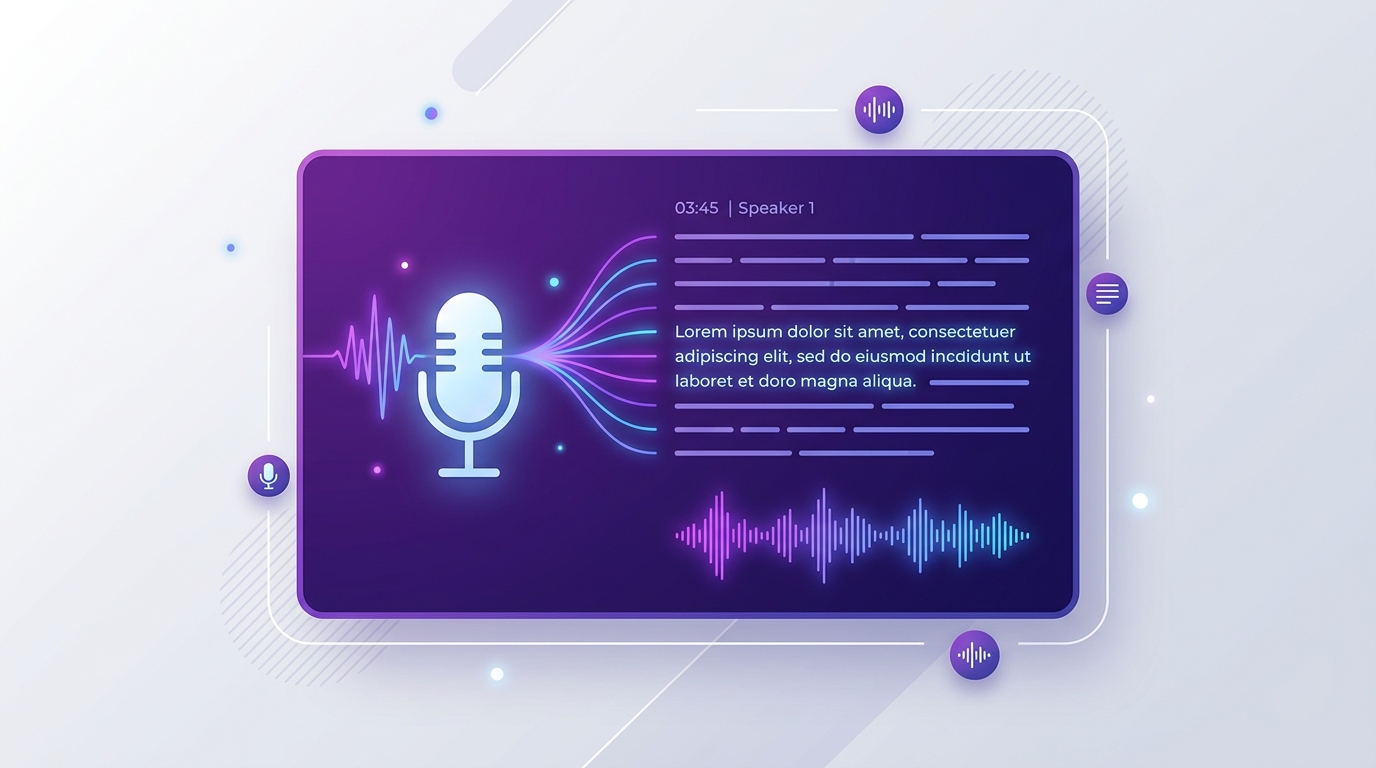
Speech to text converts spoken words into written text. You can speak into your microphone and watch the words appear on screen in real time, or upload an audio recording—such as an interview, lecture, meeting, or voice memo—and generate a clean transcript you can edit, copy, and export.
This guide shows how to use it, which transcription mode to choose, how to maximize recognition accuracy, and what you should know about privacy and browser support.
Two ways to use speech to text
Depending on your source material, speech recognition generally falls into two distinct workflows:
| Feature | Live dictation | Audio file transcription |
|---|---|---|
| What you do | Speak directly into your microphone | Upload a pre-recorded audio or video file |
| Best suited for | Drafting articles, voice emails, meeting quick-notes | Interviews, podcasts, recorded lectures, legal dictations |
| Speed | Instantaneous (words appear as you speak) | Fast (depends on the recording duration) |
| Accuracy depends on | Mic quality, room quietness, steady speaking cadence | Audio clarity, background noise, speaker separation |
| File formats | None required (live streaming audio) | MP3, WAV, M4A, AAC, WEBM, FLAC |
How to use speech to text (4 steps)
Mode A: Live Dictation
- 1Open the speech to text tool and select your spoken language dialect.
- 2Click the microphone button and grant mic permission in your browser prompt.
- 3Speak naturally at an even pace; watch words materialize on the pad.
- 4Click Stop Dictation, polish your text, and copy or download with one click.
Mode B: Audio File Transcription
- 1Upload your MP3, WAV, or voice memo file into the transcriber.
- 2Select the language spoken in the recording.
- 3Start processing and allow the speech model to parse the speech track.
- 4Review timestamped sentences and export as TXT or SRT subtitles.
How to get more accurate transcription
No automated speech model is 100% flawless. In practice, over 90% of transcription errors stem from poor audio recording conditions rather than the software. Follow this quality checklist:
| Best Practice | Why it improves accuracy |
|---|---|
| Use a headset or external USB microphone | Eliminates room echo and isolates voice closer to the audio diaphragm |
| Record in a quiet, carpeted room | Air conditioning hums, traffic, and reverberation cause misheard words |
| Speak at a natural, steady cadence | Rushing blends phonemes together; clear articulation helps word boundary detection |
| Match exact regional dialect | Selecting US vs UK vs Australian English optimizes phonetic vocabulary models |
| Keep mic 10 to 15 cm (4 to 6 in) away | Prevents explosive breath pop sounds while maintaining sufficient signal volume |
| Avoid overlapping speakers | Speech engines struggle when two speakers talk simultaneously over one channel |
| Proofread proper nouns and acronyms | Unusual brand names and medical/technical terminology require quick manual verification |
If your audio file is in an unsupported codec or uncommon container, you can convert it to standard MP3 or WAV format using our browser audio tools before transcribing.
Punctuation and voice commands
When dictating live text, you can speak punctuation marks aloud. Common English punctuation commands recognized by speech recognition engines include:
| What you say | Punctuation produced | Spoken example |
|---|---|---|
| "period" or "full stop" | . | "See you tomorrow period" → "See you tomorrow." |
| "comma" | , | "Yes comma I agree" → "Yes, I agree" |
| "question mark" | ? | "Are you ready question mark" → "Are you ready?" |
| "new line" | Line break (\n) | Moves the cursor to the next line immediately |
| "new paragraph" | Paragraph break (\n\n) | Inserts double spacing for a fresh thought |
What can you use speech to text for?
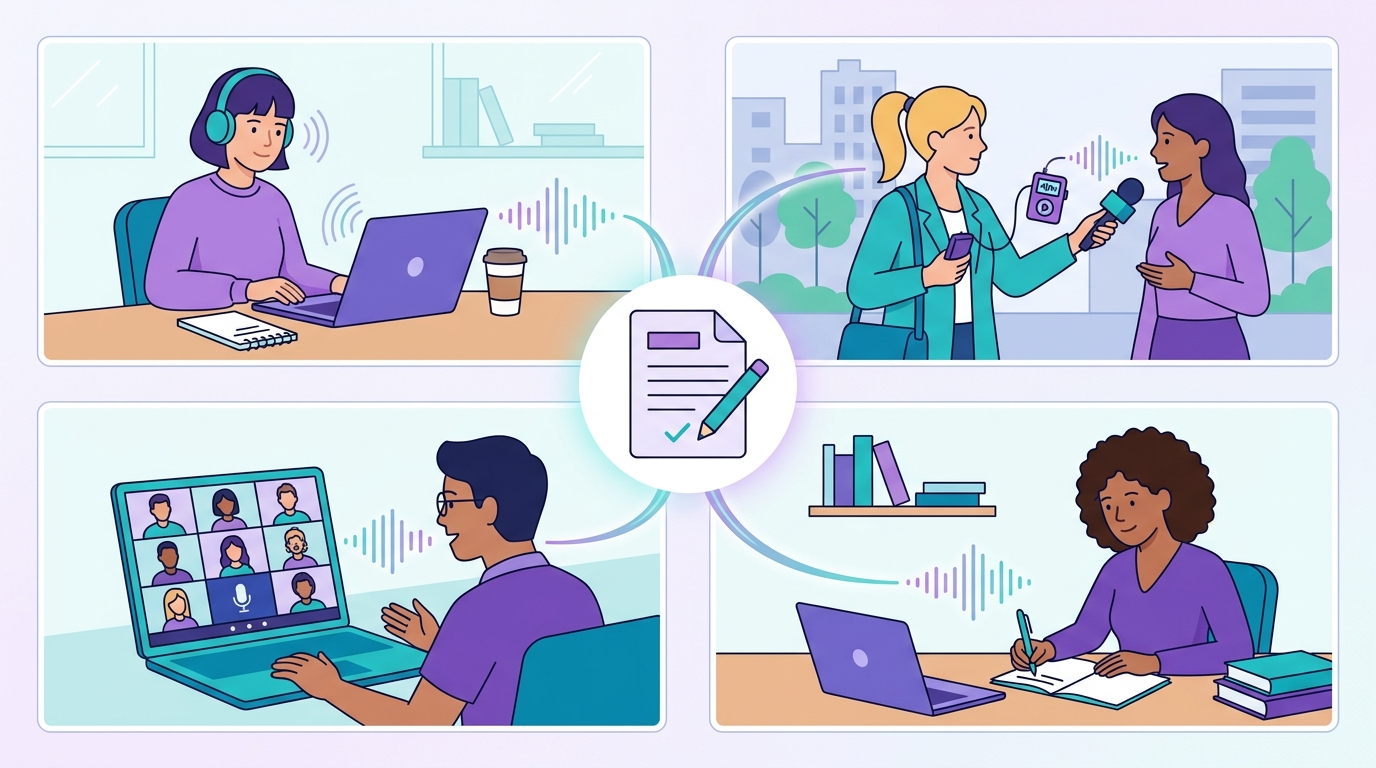
Students & Academics
Convert recorded classroom lectures and study brainstorming sessions into searchable notes.
Writers & Bloggers
Overcome writer's block by dictating first drafts at conversational speaking speed (120–150 wpm).
Journalists & Researchers
Transcribe recorded audio interviews and field conversations quickly without tedious manual typing.
Working Professionals
Capture meeting recaps, task lists, customer follow-up emails, and action items hands-free.
Accessibility
Empower individuals experiencing RSI, carpal tunnel, or motor challenges with complete voice typing.
Content Creators
Generate subtitle tracks, video captions, and blog post companions directly from audio clips.
Is speech to text private?
How your speech is handled depends on the architectural design of the tool you choose:
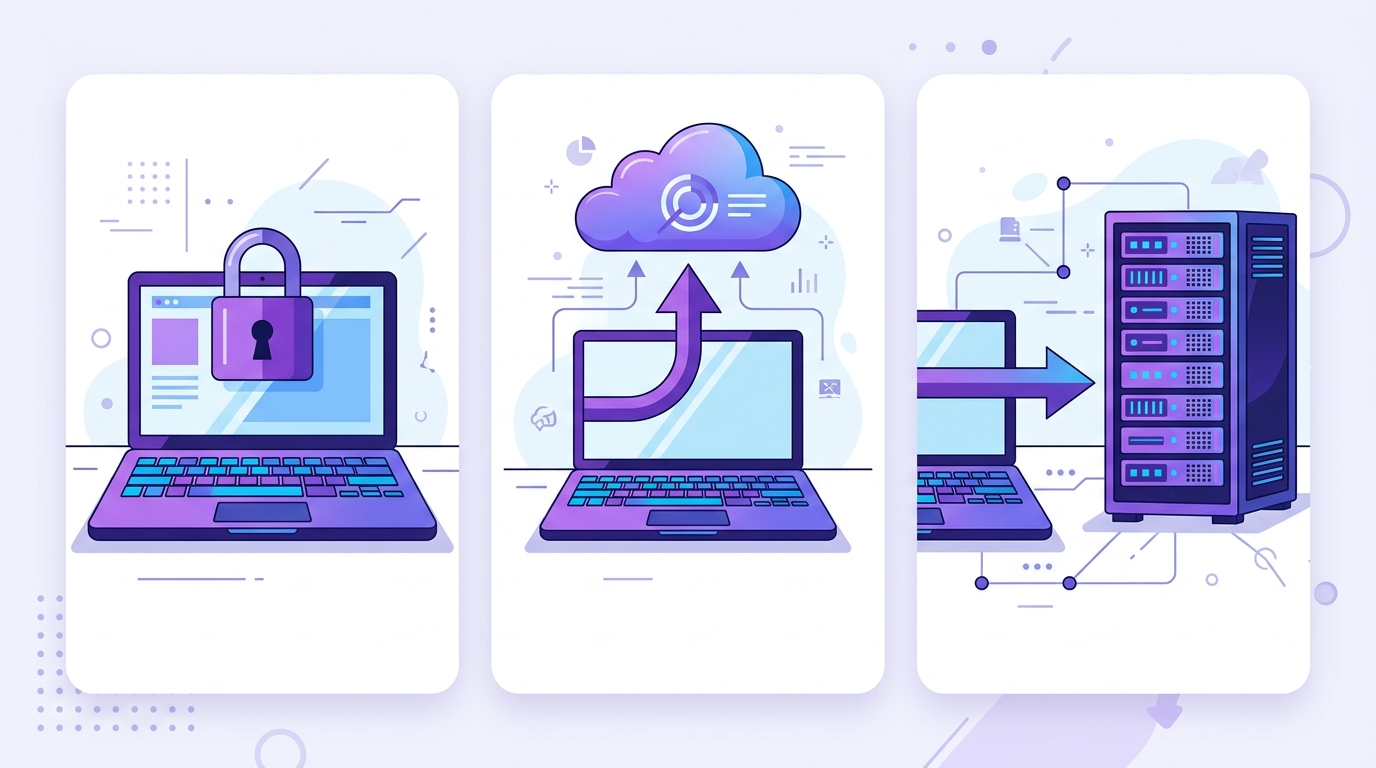
- Browser-based recognition (Web Speech API): Modern browsers like Google Chrome transmit microphone streams securely to browser recognition services to leverage immense neural language models, returning transcribed strings back to your page.
- Server-based upload sites: Many third-party commercial tools require uploading your recorded media files to their remote cloud servers, storing files and building training corpora.
- PixForgeStudio privacy commitment: Our tool does not run backend servers that store your audio files or save your transcripts. Once you close the tab, your text and audio buffer are immediately released from memory.
Troubleshooting speech to text
| Problem | Likely Cause | Resolution |
|---|---|---|
| Microphone not detected | Browser permission blocked or revoked | Click padlock icon in browser address bar and enable Microphone access |
| No words appear when speaking | Hardware mute switch engaged or wrong input device | Verify system sound input settings and check physical mute buttons |
| Frequent misheard words | Excessive background noise or mismatched dialect | Move to a quiet room and confirm language dialect matches your speech |
| Dictation unexpectedly halts | Browser timeout due to prolonged silence | Click the microphone button again to resume speaking |
| Missing punctuation | Continuous speaking without commands | Speak punctuation marks ("period", "comma") or punctuate during review |
Frequently asked questions
What is speech to text?
Speech to text (also called voice recognition, dictation, or automatic speech recognition) is technology that identifies spoken human phonemes and converts them into editable digital text strings.
Is this speech to text tool completely free?
Yes. You can dictate and transcribe text without paying subscription fees, creating accounts, or hitting mandatory credit card paywalls.
How accurate is speech to text?
Accuracy typically ranges from 90% to 98% under clean acoustic conditions. Clear audio, minimal room reverberation, and good microphone placement produce the best results.
Can I convert an audio file to text?
Yes. You can upload an audio recording (such as MP3 or WAV) to our audio transcription tool to generate formatted text transcripts and timed SRT subtitle tracks.
What is the difference between speech to text and voice to text?
They refer to the exact same technology. "Voice to text" is commonly used when speaking of phone voice typing, while "speech to text" is the standard technical industry term.
Which web browsers support speech to text?
Google Chrome, Microsoft Edge, Brave, and other Chromium-based desktop and Android browsers offer full native support for real-time dictation via the Web Speech API.
Start converting speech to text
Test with a quick practice sentence to verify your microphone level, then start dictating notes, essays, and ideas effortlessly hands-free.
Explore All 140+ Free Tools
PixForgeStudio offers 140+ free browser-based tools: PDF editor & viewer, image compressor, video trimmer, audio transcriber, converters, and calculators. 100% private — zero file uploads.
Browse All Tools