Image to PDF Converter: Turn JPG, PNG & TIFF Images into One PDF (Free)
Convert JPG, PNG, and TIFF images into a single organized PDF document. Set custom page sizes (A4, Letter), margins, orientation, and reorder pages easily.

Use the Free Image to PDF Converter Now
Prefer to get straight to work? Skip the guide and use PixForgeStudio's free client-side tool directly on your device with zero cloud uploads and instant processing.
You have taken several photos of a multi-page contract, medical bill, tax receipt, or school assignment. Sending twelve separate JPG files over email or uploading them one by one to a student portal is messy, confusing, and frequently rejected. What you need is a clean, organized, single-document PDF with every page in proper sequence.
An image to PDF converter solves this problem instantly. By merging your JPG, PNG, and TIFF pictures into a unified PDF, you ensure consistent pagination, universal cross-platform readability, and professional presentation across desktop and mobile screens.
This guide walks you through converting images into a single PDF in four simple steps, setting standard A4 and US Letter page sizes, choosing the right print resolution (DPI), and optimizing file size so your document sails under email attachment caps.
PixForgeStudio Image to PDF
100% Free • In-BrowserTurn JPG, PNG, and WebP pictures into clean PDF files in seconds.
Why convert images to a single PDF document?
While image formats like JPG and PNG are ideal for photos, they lack native pagination, text search indexing, and standardized print dimensions. Bundling images into a standardized PDF provides distinct advantages:
Guaranteed Page Sequencing
Images sent as raw attachments frequently get re-ordered alphabetically or chronologically by email clients. A PDF fixes page 1, 2, and 3 permanently in stone.
Standardized Print Formatting
Images print differently across printers due to scaling issues. A PDF container enforces exact paper margins (A4 or Letter), preventing accidental cropped edges.
Strict Portal Compliance
Government agencies, legal e-filing systems, and academic admissions exclusively accept single PDF files rather than disjointed camera uploads.
Universal Cross-Platform Viewing
Whether your recipient opens the document on Windows, macOS, Android, iPhone, or Linux, the document looks identical without relying on external image viewers.
How to convert images to PDF in 4 steps
With PixForgeStudio's client-side converter, your images are processed locally within your browser using modern WebAssembly PDF engines. No files are uploaded to the cloud:
Add Your Images
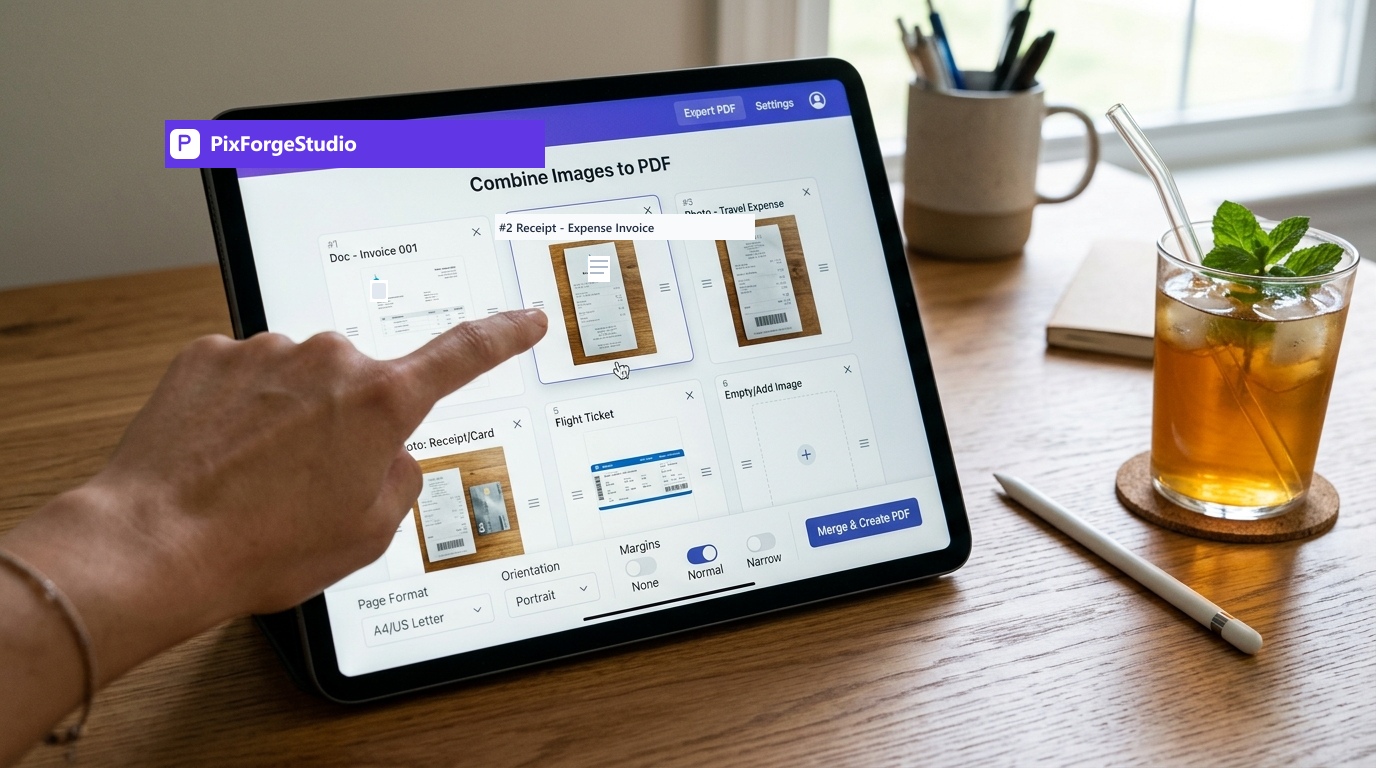
Open the Image to PDF tool and drag your JPG, PNG, WebP, or TIFF pictures into the drop area. You can select all pages at once.
Reorder and Orient Pages
Drag and drop thumbnails to arrange your document into the desired reading sequence. Rotate any sideways or upside-down mobile photos with one click.
Configure Page Size & Margins
Choose your paper standard (A4, US Letter, or Fit to Image), set orientation (Portrait or Landscape), and adjust border margins.
Generate & Download PDF
Click Create PDF. The tool compiles your images into a single polished document ready for immediate download.
PixForgeStudio Image to PDF
100% Free • In-BrowserTurn JPG, PNG, and WebP pictures into clean PDF files in seconds.
Understanding resolution: 300 DPI vs 150 DPI vs 72 DPI
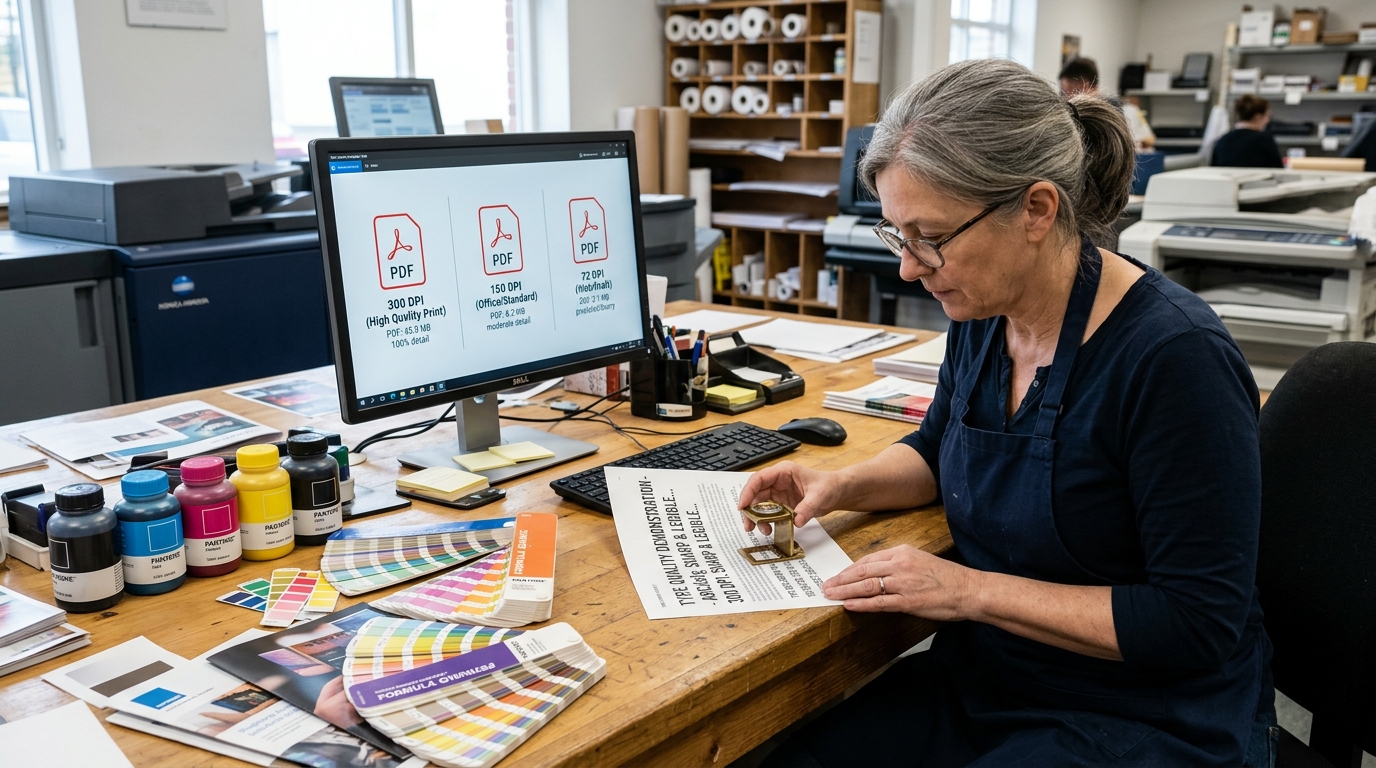
DPI (Dots Per Inch) determines how many image pixels are rendered across an inch of physical paper. Setting the right resolution prevents blurry printed text while keeping file sizes small:
| Target Resolution | A4 Dimensions (Pixels) | US Letter Dimensions (Pixels) | Best For |
|---|---|---|---|
| 300 DPI (High Res) | 2480 × 3508 px | 2550 × 3300 px | Legal contracts, medical diagnostics, archival scans, fine text |
| 150 DPI (Balanced) | 1240 × 1754 px | 1275 × 1650 px | Standard office printing, student homework, resume handouts |
| 72–96 DPI (Screen Only) | 595 × 842 px | 612 × 792 px | Email attachments, fast web preview, mobile messenger sharing |
Pro tips for photographing paper documents before converting
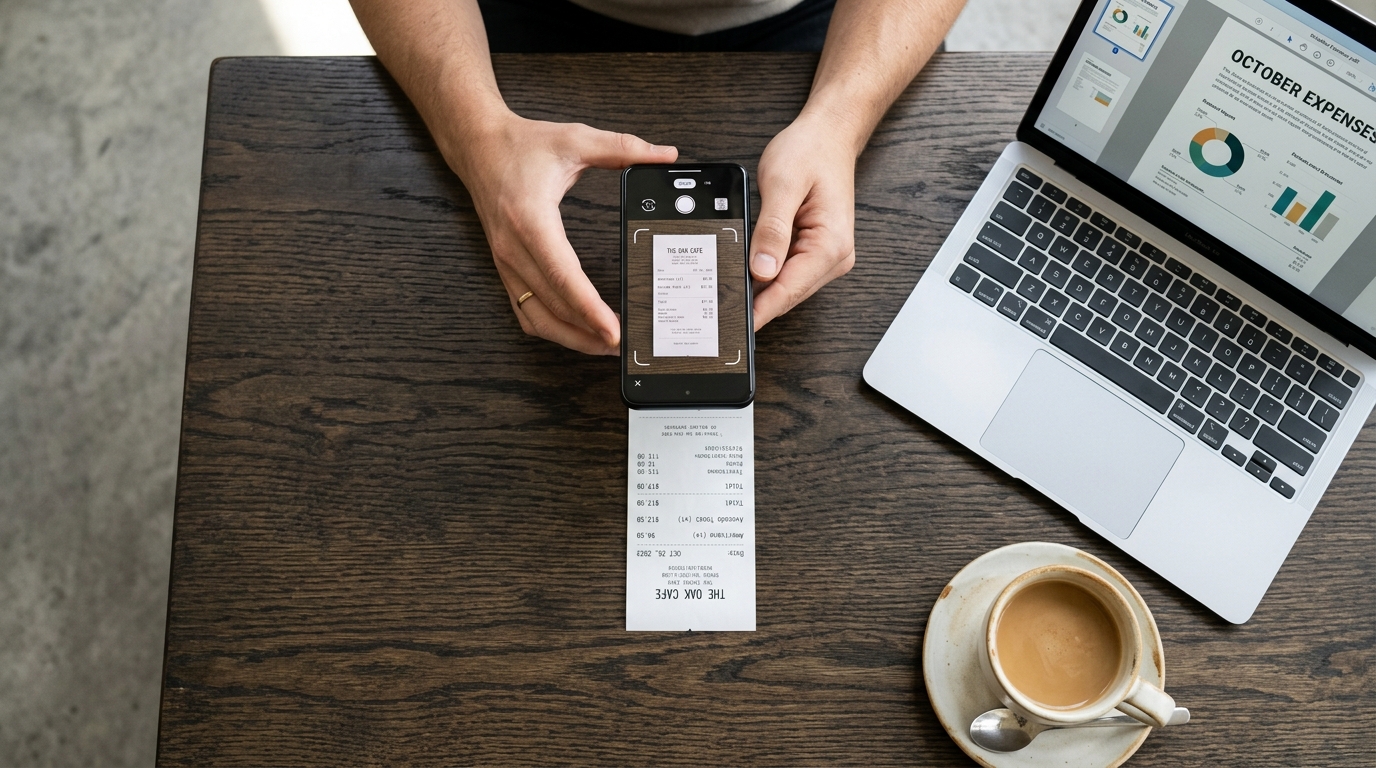
The quality of your final PDF depends on the quality of your source photos. Follow these four simple scanning rules to ensure crisp, readable documents:
1Use Overhead Diffused Light
Place the document near a bright window or under uniform room light. Avoid direct flash photography, which creates harsh hot spots that wash out printed words.
2Hold the Camera Parallel
Keep your phone level directly above the page. Shooting at an angle causes trapezoidal keystoning, making text at the top appear smaller than text at the bottom.
3Place on a High-Contrast Dark Surface
Place white paper sheets on a dark wooden table or desk. This makes page boundaries clearly visible and simplifies manual cropping.
4Pre-Compress If Sending via Email
If your phone shoots 12 MB raw photos, run them through our JPG Image Compressor to keep your merged PDF under the 25 MB email attachment cap.
Frequently asked questions about converting images to PDF
How many images can I combine into a single PDF?
Because PixForgeStudio processes the PDF entirely on your device using client-side WebAssembly, there are no artificial file limits. You can combine dozens of photos into a 50-page or 100-page PDF without subscriptions or paywalls.
Will converting images to PDF reduce their visual quality?
No. By default, the tool embeds your images at their original native resolution into the PDF page canvas. Fine handwriting, signatures, and small receipt text remain razor-sharp.
Can I mix JPG, PNG, and WebP files in the same PDF?
Yes. You can upload a mixture of JPG camera snapshots, PNG transparent graphics, WebP downloads, and even TIFF scans. The converter automatically normalizes them into uniform document pages.
How do I keep the resulting PDF file size small for email?
Select standard A4 or Letter page sizing with 150 DPI resolution. If the photos are uncompressed high-resolution smartphone shots, pre-compress them using our JPG Compressor to keep the total PDF package under 10 MB.
PixForgeStudio Image to PDF
100% Free • In-BrowserTurn JPG, PNG, and WebP pictures into clean PDF files in seconds.
Explore All 140+ Free Tools
PixForgeStudio offers 140+ free browser-based tools: PDF editor & viewer, image compressor, video trimmer, audio transcriber, converters, and calculators. 100% private — zero file uploads.
Browse All Tools