JPG Image Compress: How to Reduce Image Size to KB or 2MB Without Losing Quality
Learn how to compress JPG images to 200 KB, 500 KB, or under 2 MB without blurry results. Step-by-step methods for web, email, PowerPoint, and passports.
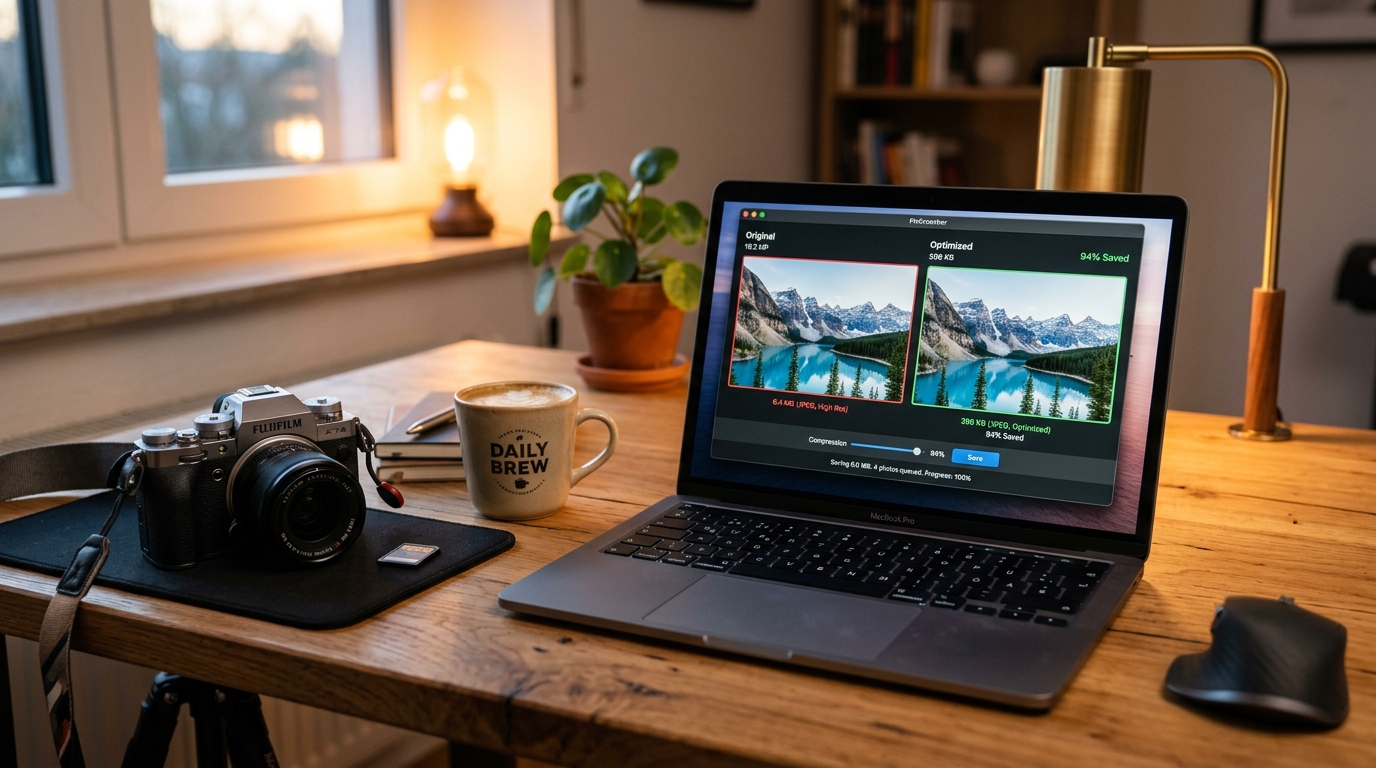
Use the Free JPG Image Compressor Now
Prefer to get straight to work? Skip the guide and use PixForgeStudio's free client-side tool directly on your device with zero cloud uploads and instant processing.
You need to submit a photo to a job application portal, government visa system, or university registration form, and a red error banner pops up: "File size must be under 2 MB" or "Maximum file size exceeded (200 KB max)". Modern smartphone cameras capture images at 12 to 48 megapixels, easily generating 5 MB to 15 MB JPG files that get rejected by upload forms.
The solution is to compress your JPG image—reducing its storage footprint while keeping the visual clarity clean and sharp. With smart compression, you can safely shrink a 6 MB camera photo down to under 500 KB or 200 KB without creating blurry edges or blocky JPEG artifacts.
This practical guide shows how to compress JPG images to exact size targets in seconds, how to compress on Mac, Windows, iPhone, and inside PowerPoint presentations, and how to avoid the five most common compression mistakes that ruin photo quality.
PixForgeStudio JPG Image Compressor
100% Free • In-BrowserCompress JPG and JPEG photos to under 200KB or 2MB without losing visual quality. 100% private in-browser compression with zero server uploads.
Why compress JPG images?
JPEG uses lossy discrete cosine transform (DCT) compression. When tuned correctly, human vision cannot detect the slight mathematical approximations made in high-frequency color detail. Compressing your images solves four widespread everyday bottlenecks:
Upload Form File Size Ceilings
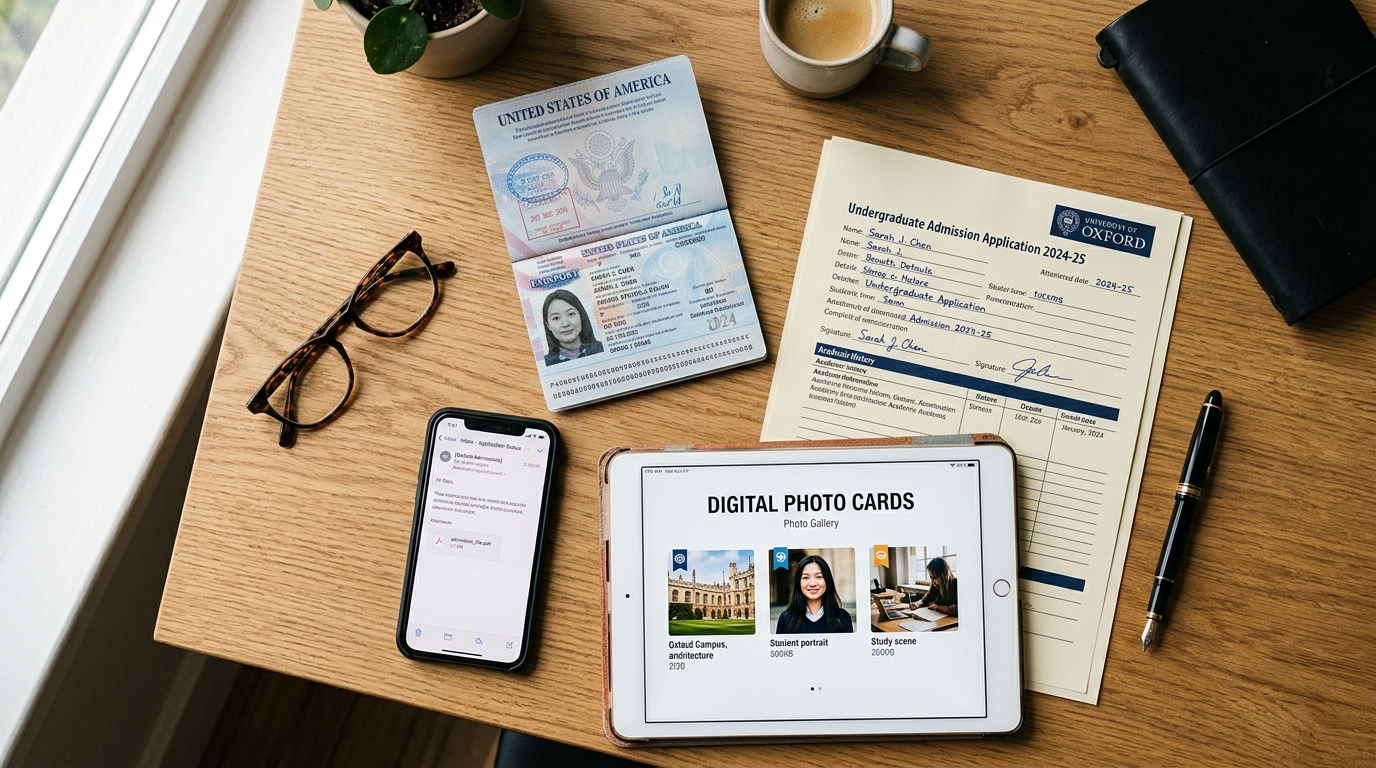
Government visa applications, passport portals, DMV renewals, and corporate HR platforms enforce strict 200 KB, 500 KB, or 2 MB hard limits to safeguard their database storage.
Email Attachment Delivery
Services like Gmail, Outlook, and corporate Exchange bounce messages when total attachment sizes exceed 20 MB to 25 MB. Three raw smartphone photos will frequently block an email.
PowerPoint & Document Bloat
Pasting ten uncompressed camera photos into a pitch deck inflates presentation slide files to over 100 MB, making sharing in Slack, Teams, or email nearly impossible.
Faster Web Loading & SEO
Every megabyte shaved off your website images boosts Google PageSpeed scores, cuts user abandonment, and lowers hosting data egress fees.
How to compress JPG to KB or 2MB in 4 steps
Using PixForgeStudio's client-side image compressor, all processing happens locally inside your browser memory. Your files are never sent across the internet, guaranteeing complete privacy for personal documents and photos:
Add Your JPG Images
Open the Image Compressor tool and drag your JPG, JPEG, or PNG images into the upload dropzone. Batch processing lets you compress dozens of files simultaneously.
Select Target Size or Quality
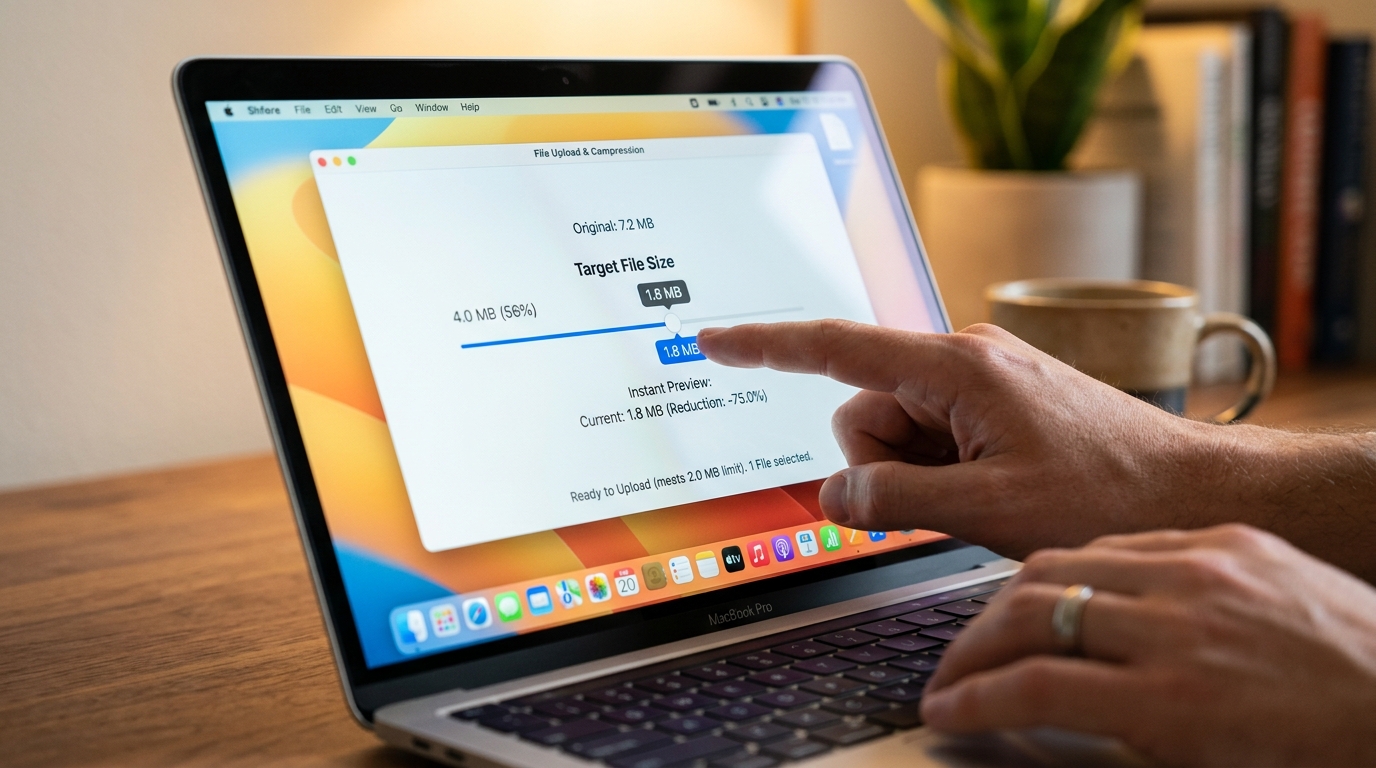
Slide the quality control to balance compression strength, or set a target file size limit (such as 200 KB or 2 MB). The tool calculates the exact quantization parameters automatically.
Review Real-Time Size Savings
Inspect the live comparison showing original size versus compressed output size, along with percentage reduction (typically 60% to 85% savings).
Download Clean JPG Files
Click Download to save the optimized photo to your device, or download all files packaged in a single ZIP file.
PixForgeStudio Image Compressor
100% Free • In-BrowserReduce image file size while keeping quality.
Common JPG target sizes and where they are required
Different platforms mandate different file thresholds. Use this reference table to match your compression target to your specific task:
| Target Size | Common Applications | Recommended Dimensions | Quality Setting |
|---|---|---|---|
| Under 2 MB | Job applications (Workday, Greenhouse), university portals, corporate intranet uploads, high-res presentation slides | 2400 × 1600 px or original | 85%–90% |
| Under 500 KB | E-commerce product photos (Shopify, Etsy, Amazon, eBay), real estate MLS listings, email newsletter banners | 1600 × 1200 px | 80%–85% |
| Under 200 KB | Blog post graphics, profile avatars, passport photo uploads, mobile messaging apps | 1200 × 800 px or 600 × 600 px | 75%–80% |
| Under 100 KB | Government immigration portals, national ID submissions, driver license online renewals, exam registration | 800 × 600 px or 400 × 400 px | 70%–75% |
Compressing JPG on Mac, Windows, iPhone, and PowerPoint
If you are working offline or inside specific operating system apps, you can also compress JPG files using these built-in tools:
Mac (Preview App)
Open the image in Preview. Click File > Export..., set the format to JPEG, and drag the quality slider leftward. Preview displays the resulting file size in real time before saving.
Windows (Photos & Paint)
Open the photo in Microsoft Photos, click the three dots (…) in the top bar, and choose Resize image. Choose a preset or set percentage dimensions to cut the file size by 70%.
iPhone & iPad (iOS)
Share the photo via the built-in Mail app to yourself. iOS will prompt: "Reduce file size to Small, Medium, Large, or Actual Size". Selecting Medium produces an instant ~300 KB JPG.
Microsoft PowerPoint
Click any image in your deck, go to the Picture Format tab, and click Compress Pictures. Select "Web (150 ppi)" or "E-mail (96 ppi)" and check "Apply to all pictures in this file".
5 common JPG compression mistakes to avoid
Avoid these common missteps that cause photos to become grainy, pixelated, or unnecessarily bloated:
1. Compressing an already compressed JPG repeatedly (Generation Loss)
Every time you open, edit, and re-save a lossy JPEG, compression algorithms re-quantize pixel blocks, creating cumulative "generation loss" and muddy colors. Always compress from the original master file.
2. Lowering quality without scaling down camera pixel dimensions
If an image is 6000 × 4000 pixels, dragging quality down to 40% will produce ugly artifacts while still yielding a 1 MB file. First resize the dimensions to 1920 × 1280, then compress at a clean 85% quality.
3. Keeping hidden camera metadata (EXIF & GPS)
Camera raw metadata, embedded thumbnails, color profiles, and location coordinates can add 30 KB to 100 KB of hidden overhead. PixForgeStudio automatically strips redundant metadata to maximize byte savings.
4. Using JPG for high-contrast screenshots or typography
JPEG compression struggles with crisp vector lines, small text, and sharp boundaries, creating "mosquito noise" around letters. For logos and screenshots, convert to PNG instead using our Image to PNG Converter.
5. Failing to zoom to 100% to inspect critical details
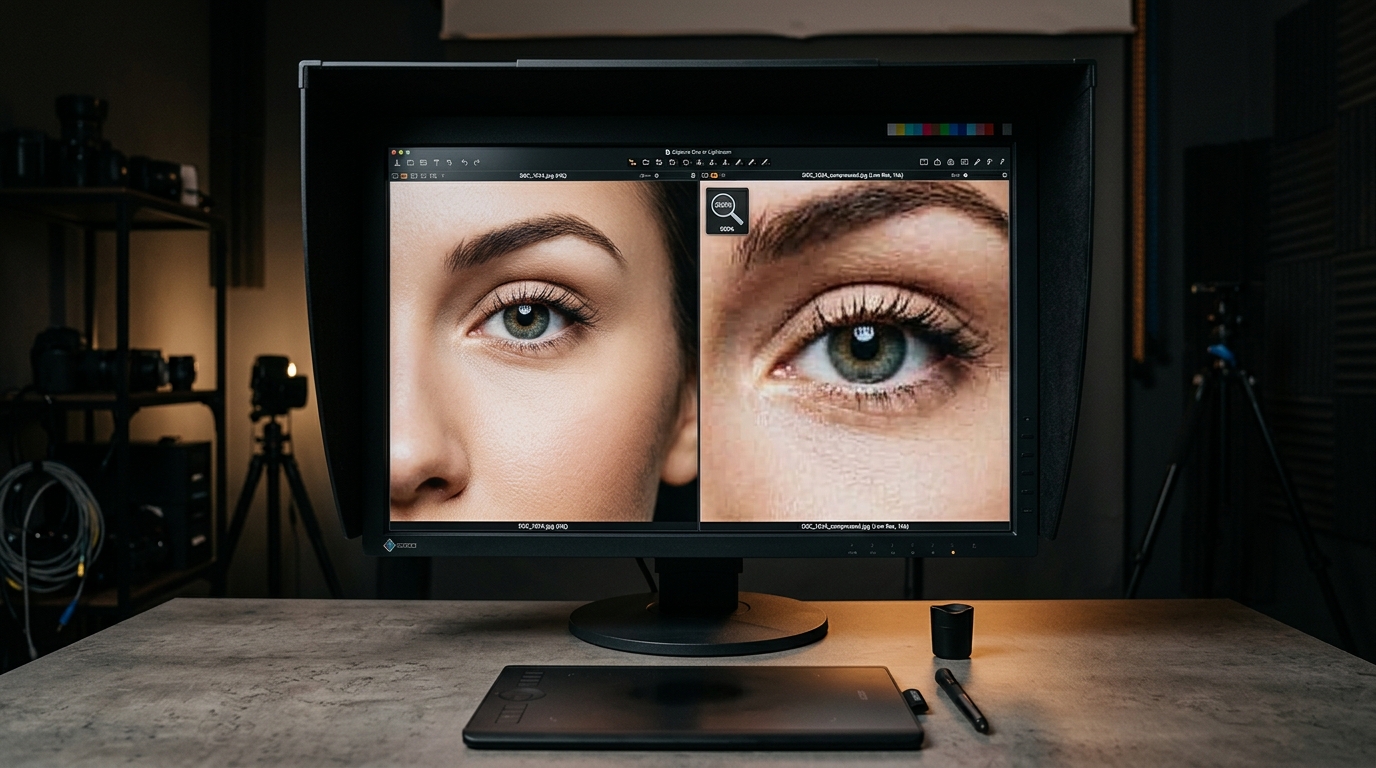
Before uploading passport or official identity photos, zoom in to 100% to verify that eye pupils, facial contours, and background walls remain crisp without pixelated square tiles.
Frequently asked questions about JPG compression
How do I compress a JPG image to exactly 200 KB?
In PixForgeStudio's Image Compressor, upload your photo and set the target limit to 200 KB. If the original photo was captured at 48 MP, downscale the pixel width to roughly 1200 pixels first; the compression engine will then easily dial in under 200 KB while maintaining crystal-clear sharpness.
Does compressing an image remove sensitive EXIF camera metadata?
Yes. By default, web browser canvas encoding strips non-essential metadata including camera serial numbers, focal lengths, and GPS geolocation coordinates. This both shrinks the file and protects your personal privacy before uploading to public websites.
What is the difference between resizing and compressing an image?
Resizing changes the physical pixel dimensions of the image (for example, shrinking 4000 × 3000 down to 1920 × 1440). Compressing optimizes the mathematical encoding of the existing pixels to consume fewer bytes on disk. Combining both gives the greatest reduction.
Can I compress multiple JPG images at the same time?
Yes. You can select or drag dozens of JPG files into the tool at once. They will all be processed concurrently right in your browser memory and bundled into a fast ZIP download.
PixForgeStudio Image Compressor
100% Free • In-BrowserReduce image file size while keeping quality.
Explore All 140+ Free Tools
PixForgeStudio offers 140+ free browser-based tools: PDF editor & viewer, image compressor, video trimmer, audio transcriber, converters, and calculators. 100% private — zero file uploads.
Browse All Tools