JPG to WebP: How to Convert Images and Make Your Website Faster
Convert JPG to WebP to shrink image sizes by 25–35% without losing visible quality. Boost Core Web Vitals, improve SEO rankings, and speed up page load.
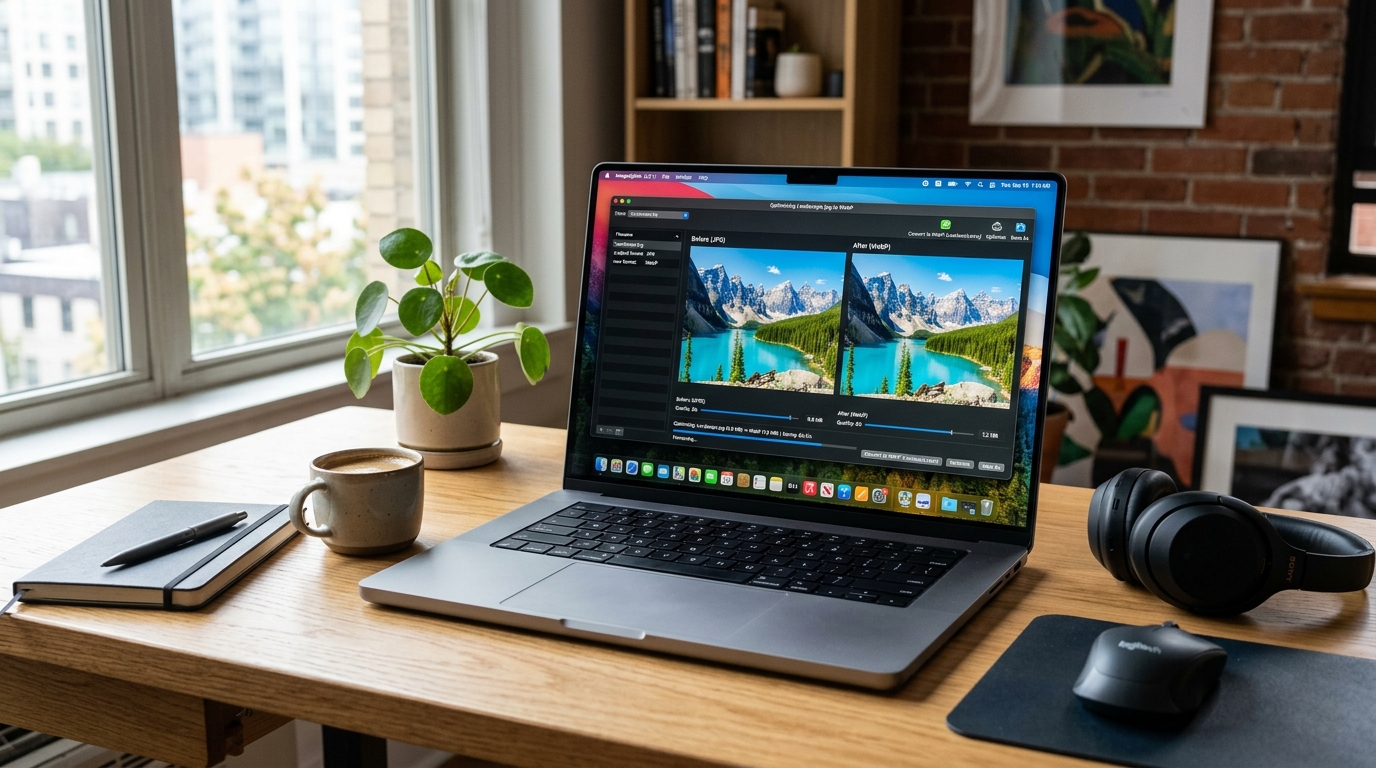
Use the Free JPG to WebP Converter Now
Prefer to get straight to work? Skip the guide and use PixForgeStudio's free client-side tool directly on your device with zero cloud uploads and instant processing.
Heavy JPEG photos are one of the single biggest reasons websites feel sluggish on mobile phones and fail Google's Core Web Vitals audits. If your landing pages take more than 2.5 seconds to load, visitors bounce and search rankings drop. The most effective, low-effort optimization you can make is to convert JPG to WebP.
WebP is an open modern image format engineered by Google specifically for the web. It delivers 25% to 35% smaller file sizes than standard JPG at identical visual fidelity. With over 96% global browser adoption, switching your images to WebP cuts bandwidth costs, speeds up Largest Contentful Paint (LCP), and boosts your organic search rankings.
This comprehensive guide explains how to convert JPG to WebP in four simple steps, which compression quality sweet spot to choose, how to implement HTML fallback tags, and how to handle WebP in modern content management systems like WordPress and Shopify.
PixForgeStudio JPG to WebP Converter
100% Free • In-BrowserConvert JPG and JPEG pictures into modern WebP format to shrink file sizes by up to 35% and boost Core Web Vitals with zero server uploads.
Why WebP matters: page speed and Core Web Vitals
When Google introduced WebP, the primary objective was to modernize compression algorithms that had remained largely unchanged since the JPEG standard was ratified in 1992. WebP leverages advanced predictive intra-frame coding (derived from the VP8 video codec) to predict pixel blocks based on neighboring blocks, encoding only the difference.
Smaller File Size
Smaller payload than JPG at equivalent SSIM (structural similarity) ratings.
Faster LCP Metric
Directly accelerates Largest Contentful Paint for higher PageSpeed scores.
Browser Support
Supported out of the box in Chrome, Safari 14+, Firefox, Edge, and Opera.
Google Search uses page experience metrics—notably Core Web Vitals—as a direct ranking signal. Replacing a 1.2 MB hero JPEG with an equivalent 380 KB WebP file often eliminates layout shifts, reduces mobile data consumption, and lowers server egress bandwidth bills significantly.
How to convert JPG to WebP in 4 steps
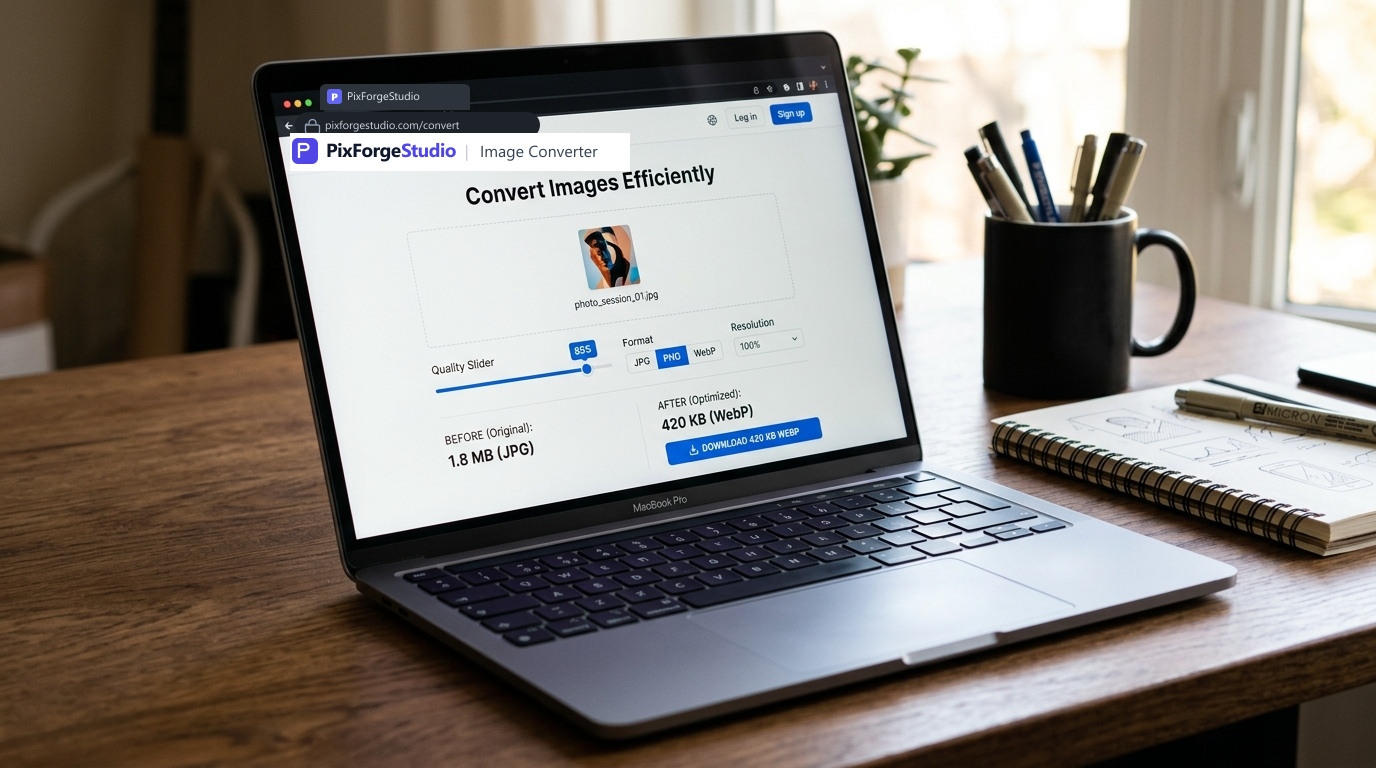
With PixForgeStudio's client-side image converter, all transformations execute directly in your web browser using HTML5 Canvas and WebAssembly. Your photos are never uploaded to any cloud server, ensuring 100% privacy and zero file size restrictions:
Select or Drop Your JPGs
Open the Image Format Converter and drag your .jpg or .jpeg files into the upload box. Batch conversion supports multiple images at once.
Choose WebP Output
Select WEBP from the target format dropdown. You can convert to JPG, PNG, and other formats through the same interface.
Set Quality Slider
Adjust the quality control between 1% and 100%. For web graphics and hero headers, an 80% to 85% setting provides the optimal trade-off between tiny file size and sharp visual clarity.
Convert and Download
Click Convert. The browser transforms your files instantaneously. Download images individually or save all compressed files as a clean ZIP archive.
PixForgeStudio Image Format Converter
100% Free • In-BrowserConvert between JPG, PNG, WebP, and other formats.
Which WebP quality setting should you use?
Because WebP compression is far more aggressive and sophisticated than legacy JPEG, you can safely set the quality slider lower than you would for a standard JPG without creating unsightly artifacts:
| Quality Setting | Visual Result | Expected File Savings | Recommended Use Case |
|---|---|---|---|
| 90%–100% | Imperceptible compression, pixel-perfect detail | 10%–20% smaller than JPG | Photography portfolios, high-resolution hero banners, art prints |
| 80%–85% | Crisp edges, clean gradients, zero visible noise | 30%–45% smaller than JPG | Recommended Sweet Spot for blog posts, e-commerce, and marketing sites |
| 70%–79% | Slight edge softening visible only at 200% zoom | 45%–60% smaller than JPG | Product thumbnails, mobile news feeds, background patterns |
| Below 70% | Visible smoothing in high-contrast textures | 65%+ smaller than JPG | Ultra-constrained data environments or placeholder preview blur hashes |
HTML <picture> fallback implementation
While modern browsers fully understand WebP, legacy mail clients, older desktop tools, and legacy systems may occasionally fail to render it. The web standard solution is the HTML5 <picture> element. It automatically serves WebP to capable browsers while maintaining a seamless JPG fallback for legacy clients:
<picture>
  <!-- Serves lightweight WebP to modern browsers (Chrome, Safari, Firefox, Edge) -->
  <source srcset="/images/hero.webp" type="image/webp" />

  <!-- Fallback for legacy browsers and image parsers -->
  <img
    src="/images/hero.jpg"
    alt="Modern website hero banner"
    width="1200"
    height="630"
    loading="lazy"
  />
</picture>
The browser evaluates <source> from top to bottom. If the browser supports WebP, it downloads only hero.webp. It never fetches both files, saving critical bandwidth.

Converting images for WordPress, Shopify & CMS platforms
Modern versions of WordPress (version 5.8 and newer) support uploading WebP images directly into the Media Library. However, relying on server-side plugins (like Smush, Imagify, or ShortPixel) has noticeable downsides:
Server-Side Plugin Drawbacks
- Consumes limited PHP hosting CPU memory during image generation
- Duplicates media storage by retaining both original JPG and new WebP files
- Many plugins impose monthly credit limits or recurring subscriptions
- Can slow down server response time (TTFB) during bulk uploads
Pre-Converting with PixForgeStudio
- Zero hosting server CPU load; rendering happens on your local processor
- Clean single-file uploads with no duplicate image duplicates in media library
- 100% free with unlimited batch conversions and zero watermarks
- Works with Shopify, Webflow, Ghost, Next.js, Gatsby, and static sites
Frequently asked questions about JPG to WebP
Does converting JPG to WebP improve SEO?
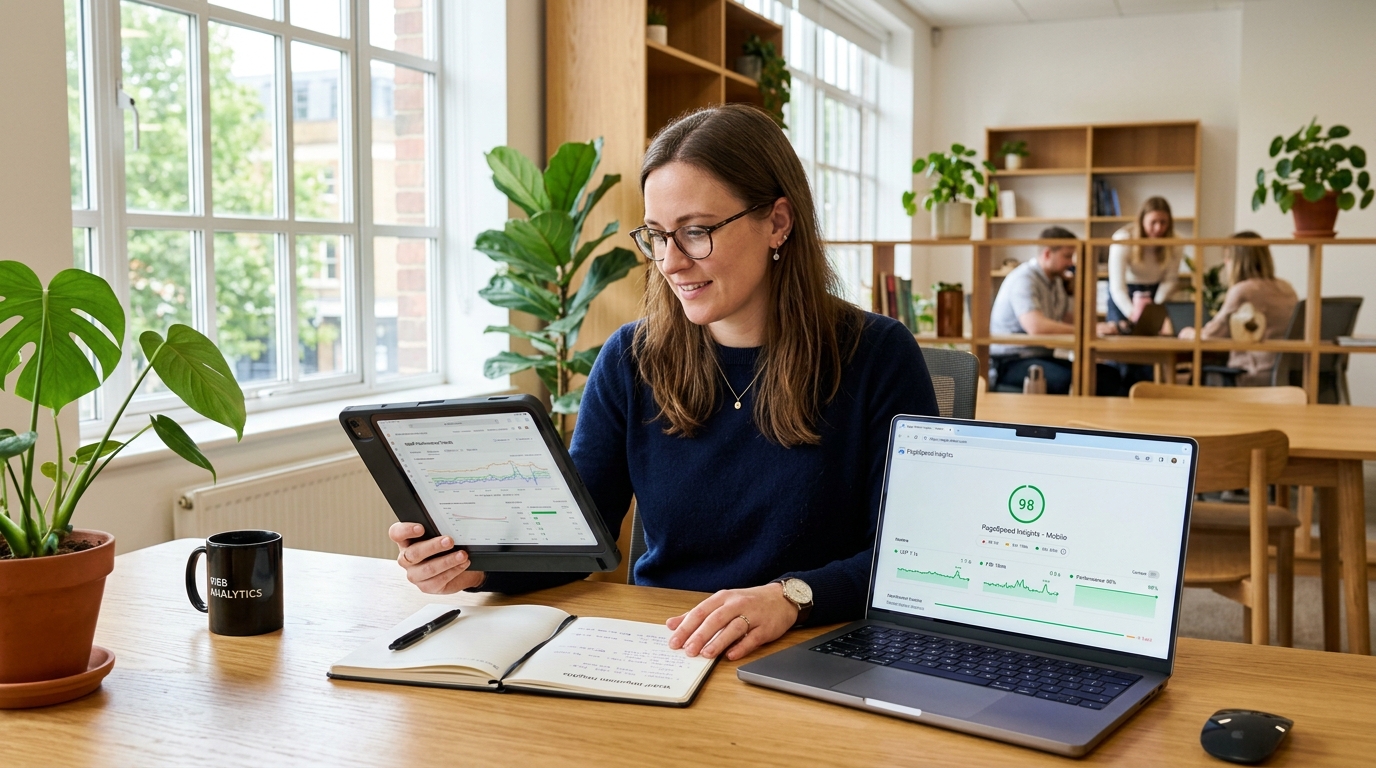
Yes. Google counts page speed and Core Web Vitals (specifically Largest Contentful Paint) as confirmed search ranking signals. By cutting hero image sizes by 30% or more, your pages load substantially faster on mobile devices, improving user retention and boosting organic crawl efficiency.
Is WebP supported by all modern web browsers?
Yes. WebP is supported in Google Chrome, Apple Safari (since iOS 14 and macOS Big Sur), Mozilla Firefox, Microsoft Edge, and Opera, covering over 96.8% of global internet traffic. For legacy clients, standard HTML5 <picture> tags provide effortless JPG fallback.
Can I convert WebP back to JPG if I need to edit the file?
Absolutely. If an older desktop photo editing app or office program doesn't accept your WebP file, you can reverse the process instantly using our free WebP to JPG converter without installing any software.
Will converting JPG to WebP degrade image quality?
Not when using recommended quality levels (80% to 90%). WebP uses advanced predictive block compression that avoids the ugly macroblocking and color ringing typical of older JPEG compression at similar file sizes. To the human eye on desktop and Retina screens, quality remains indistinguishable.
PixForgeStudio Image Format Converter
100% Free • In-BrowserConvert between JPG, PNG, WebP, and other formats.
Explore All 140+ Free Tools
PixForgeStudio offers 140+ free browser-based tools: PDF editor & viewer, image compressor, video trimmer, audio transcriber, converters, and calculators. 100% private — zero file uploads.
Browse All Tools