WebP to JPG: How to Convert WebP Images to JPG Free (No Upload)
Convert WebP to JPG in seconds. Set quality, keep colors sharp, and download free. Files stay on your device. No upload, no signup, no watermark.
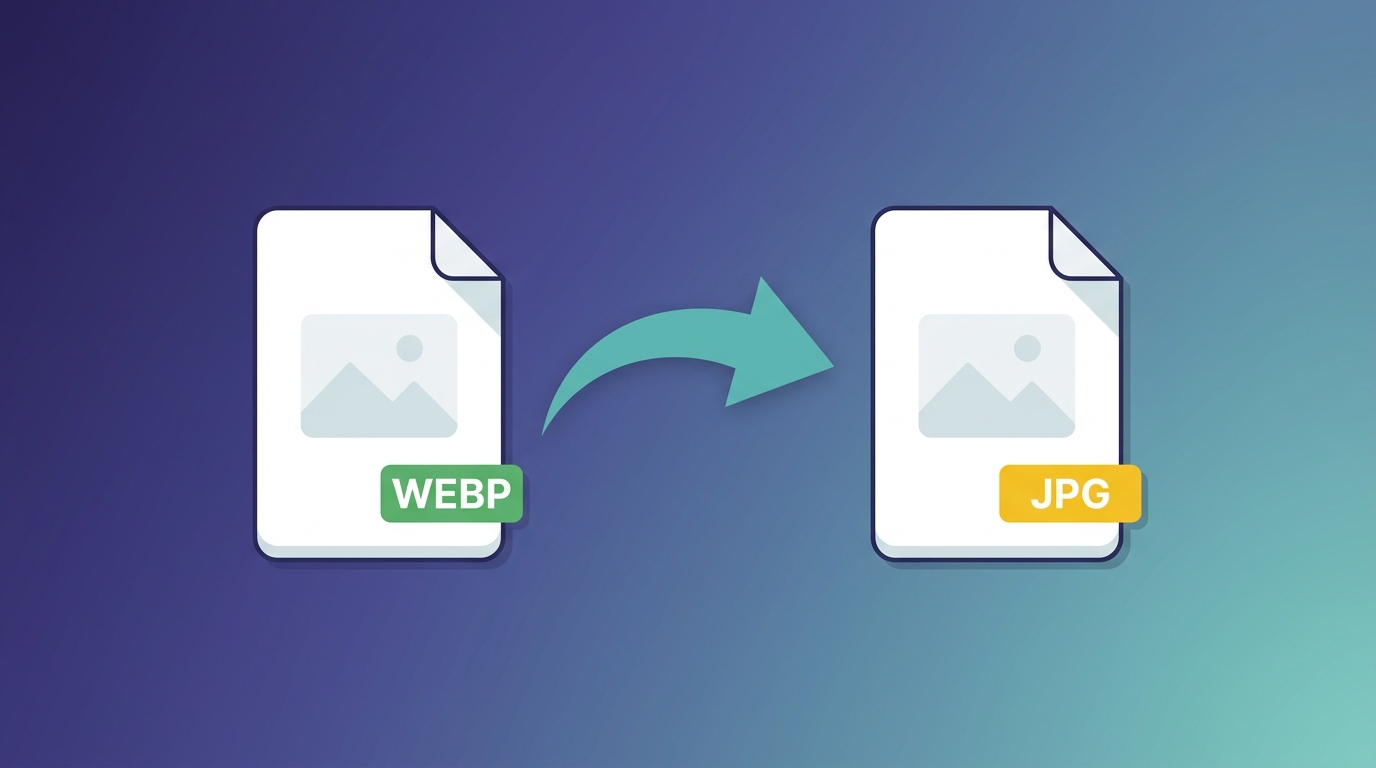
You save an image from a website, and it turns out to be a .webp file. Then your photo editor, email client, or upload form refuses to open it. The quickest fix is to convert WebP to JPG, a format that works almost everywhere.
This guide shows how to convert in four steps, which quality setting to use, what happens to transparency, and how to convert on Mac and Windows.
What is a WebP file?
WebP is an modern image format created by Google to make web images smaller and faster to load. It supports both lossy and lossless compression, alpha transparency, and animation, which is why many websites now serve images this way to boost page speed scores.
The catch: the images work great in modern browsers, but not always everywhere else. Older photo editors, some desktop email programs, print fulfillment services, e-commerce marketplaces, and office document tools still strictly expect JPG or PNG files.
How to convert WebP to JPG in 4 steps
A browser-based converter does all the work directly on your device, so your images are never uploaded to any remote server:
Open the Converter
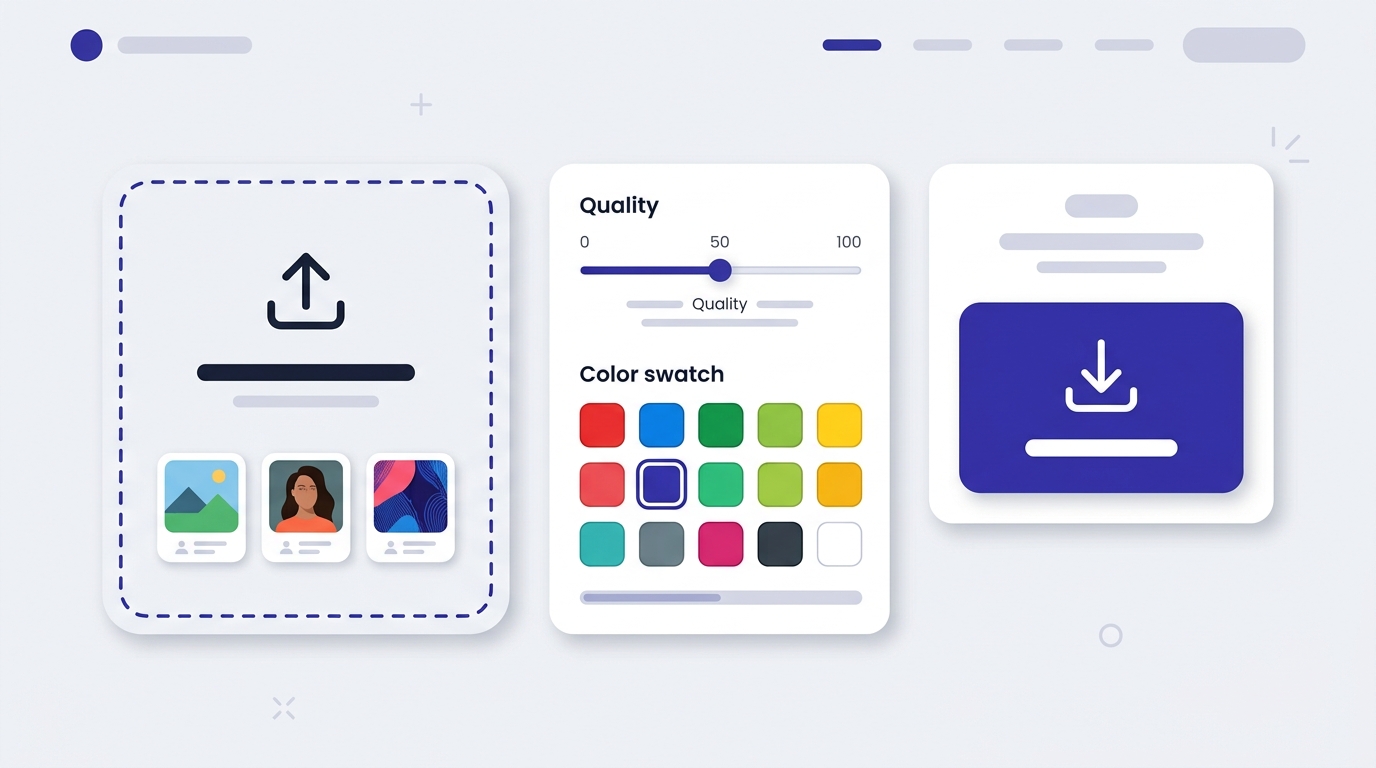
Open the WebP to JPG converter and drag in your .webp files. You can add several files at once for batch conversion.
Choose Quality
Set the JPG export quality slider. 90% is a safe default. Lower it if you need a smaller file size for email.
Pick Background Color
Since JPG lacks transparency, select a fill color (white by default) for any transparent areas in your original WebP file.
Convert and Download
Click Convert to generate crisp JPG files instantly, then download them individually or as a single combined zip archive.
WebP vs. JPG vs. PNG: what is the difference?
Each image format has specific trade-offs between compression efficiency, feature support, and cross-platform compatibility:
| Feature | WebP | JPG (JPEG) | PNG |
|---|---|---|---|
| Compression | Lossy and lossless | Lossy | Lossless |
| Transparency | Yes (Alpha) | No | Yes (Alpha) |
| Animation | Yes | No | No (standard PNG) |
| File size | Usually smallest | Small for photos | Largest for photos |
| Compatibility | Modern browsers; mixed in legacy software | Universal (99.9%) | Universal (99.9%) |
| Best for | Fast websites & mobile apps | Photos, email, printing, marketplaces | Logos, screenshots, graphics with transparency |
Need transparency preserved? Convert to PNG instead using our image to PNG converter.
Which JPG quality should you choose?
JPG is a lossy format, and your source WebP may already have compression applied. Converting introduces an additional compression generation, so keeping the quality high is critical:
| Quality Setting | Visual Result | Recommended Use Case |
|---|---|---|
| 95–100% | Near-identical to the source, larger file | Archiving, photo editing, high-dpi printing |
| 85–92% | Excellent quality, balanced file size | Most uses — ideal default setting |
| 70–80% | Smaller file, slight softening under close zoom | Email attachments, quick chats, blog thumbnails |
| Below 60% | Visible 8x8 block artifacts and color banding | Rarely recommended for photos |
What happens to transparent backgrounds?
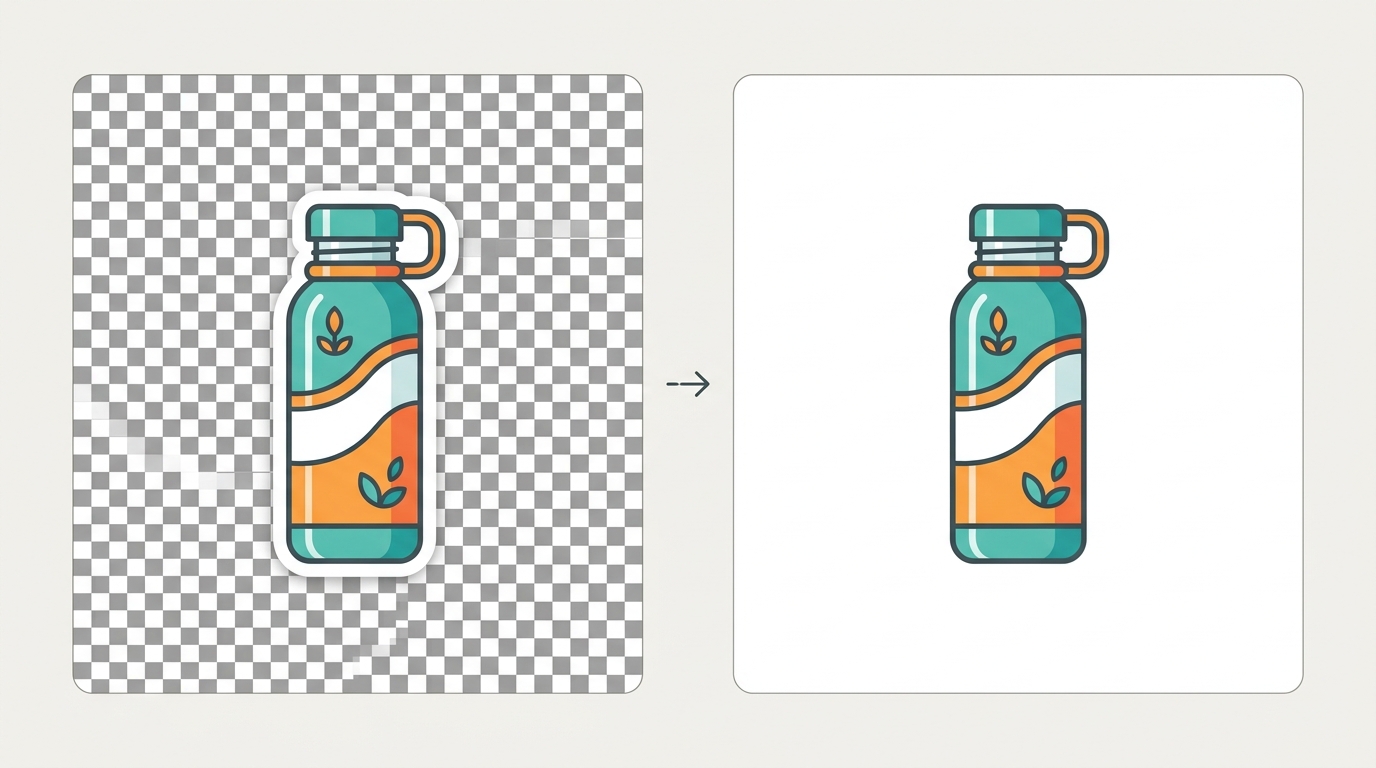
The JPG specification does not support alpha transparency. When you convert a transparent WebP image, any transparent pixels must be rendered with a solid fill color — typically white by default.
- Pick a background color that matches where the image will be displayed (e.g. black for dark-themed presentations or white for documents).
- If you must keep true transparency for logos, overlays, or stickers, convert to PNG instead.
Converting WebP on Mac, Windows & Mobile
How to convert WebP to JPG on Mac
On modern versions of macOS (macOS 11 Big Sur and newer), the built-in Preview app can open WebP files natively:
- Double-click the image to open it in Preview.
- Choose File → Export… from the top menu.
- Set the Format dropdown to JPEG and adjust the quality slider.
- Click Save.
For multiple files, our browser converter saves time by converting the entire batch simultaneously without repetitive manual export clicks.
How to convert WebP to JPG on Windows
Windows 11 builds can open WebP files directly in Microsoft Paint or the Photos app:
- Right-click the WebP file and choose Open with → Paint.
- Go to File → Save as → JPEG picture.
- Select your destination folder and click Save.
If your Windows version lacks WebP codec support, using the in-browser converter eliminates the need to install third-party plugins.
How to convert WebP to JPG on iPhone or Android
Open the PixForgeStudio converter in Safari or Chrome on your mobile device. Tap to select images from your photo library or Files app, tap Convert, and save the JPG back to your device. This is ideal when an app, online portal, or form rejects the WebP format.
Common problems when converting WebP to JPG
| Problem | Why it happens | How to fix it |
|---|---|---|
| JPG file is bigger than WebP | WebP compresses 25–35% more efficiently than JPG at equivalent perceptual quality. | Lower the quality slider to approximately 80–85%. |
| Unexpected white/black background | The source WebP contained transparent sections which JPG replaced with a solid color. | Choose a background color that matches your layout, or convert to PNG instead. |
| Animated WebP became static | The standard JPG format has no frame animation capabilities. | Convert to animated GIF or MP4 video if motion must be preserved. |
| Colors look slightly different | Differences in embedded sRGB color profiles or gamma curves between decoders. | Re-export from the original design source if color-critical accuracy is needed. |
| Image looks soft or blurry | Generation loss from applying lossy compression on top of an already compressed source. | Keep quality at 90% or higher. |
What about JPG to WebP?
If you run a website or blog, converting in the other direction (JPG to WebP) pays significant performance dividends. WebP files are consistently 25% to 35% smaller than JPGs at equivalent visual fidelity, resulting in faster Largest Contentful Paint (LCP) times and higher Google PageSpeed scores.
Always retain your high-resolution original JPGs as masters, and serve generated WebP files to your website visitors. Virtually all modern web browsers now support WebP natively.
Frequently asked questions
Is WebP better than JPG?
For websites, often yes, because WebP produces smaller files at similar visual quality. For universal compatibility across desktop image editors, email clients, print labs, and marketplace uploaders, JPG remains the safer and more reliable choice.
Does converting WebP to JPG reduce quality?
Slightly, if the original WebP was lossy. Setting your export quality to 90% or higher keeps compression artifacts virtually imperceptible to the human eye.
Can I convert many WebP files at once?
Yes. Drag and drop multiple files to batch process your entire library in parallel directly inside your browser.
Is it safe to convert WebP to JPG online?
With a client-side tool like PixForgeStudio, yes. Files are processed entirely in your browser using local canvas decoding and are never uploaded to any cloud server, keeping personal and sensitive files 100% private.
Why do images save as WebP instead of JPG?
Websites serve WebP to improve page load speed and bandwidth efficiency. When you save an image from the web, your browser downloads the exact file format delivered by the server.
Will the JPG keep the original dimensions?
Yes. Format conversion transforms image encoding without modifying the width or height pixel dimensions.
Convert WebP to JPG now
Drop in your WebP files, set the quality, and download JPGs that open anywhere, with no sign-up and zero uploads.
Explore All 140+ Free Tools
PixForgeStudio offers 140+ free browser-based tools: PDF editor & viewer, image compressor, video trimmer, audio transcriber, converters, and calculators. 100% private — zero file uploads.
Browse All Tools