How to Use a PDF File to Image Converter: Free, No Signup
Use a free PDF file to image converter in your browser: pick JPG or PNG, set DPI and pages, then download. No uploads, no signup, no watermarks.
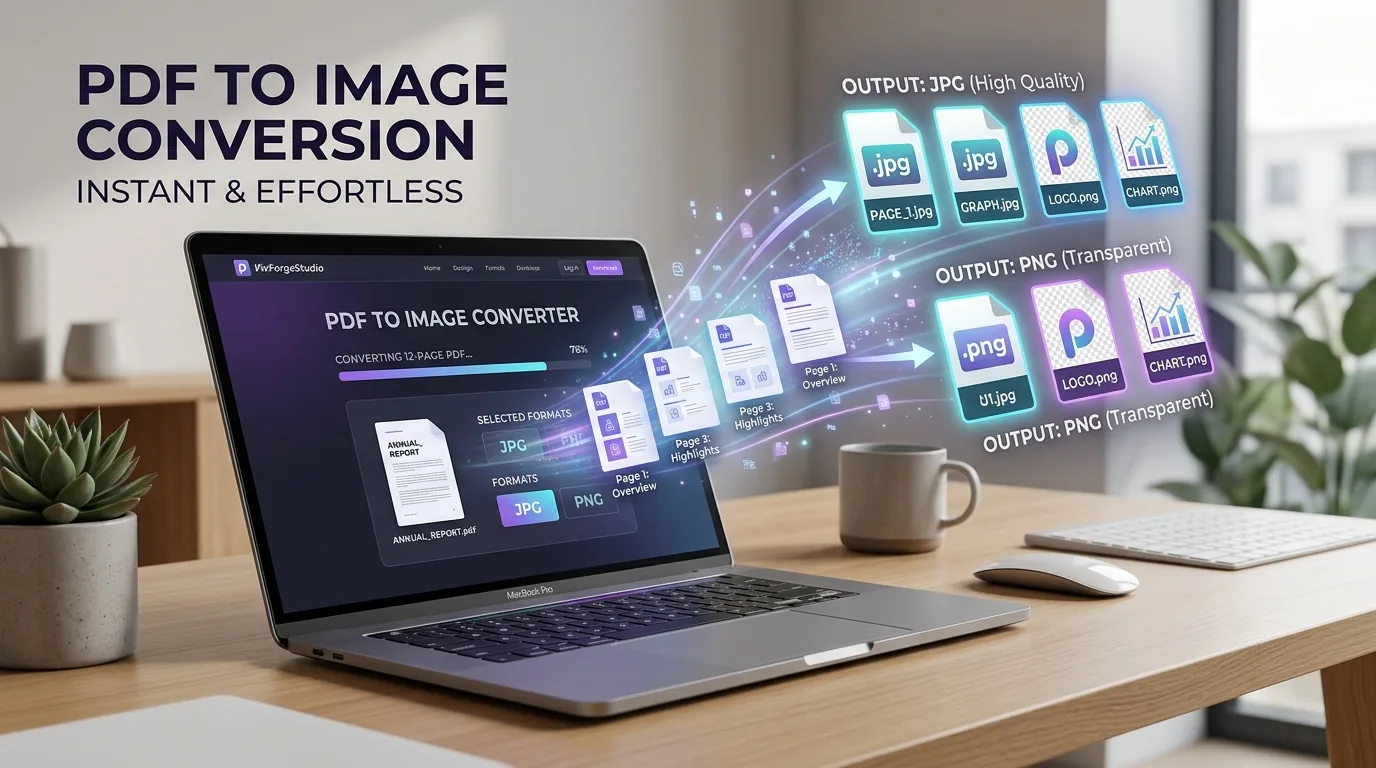
You have a PDF and you need a picture. Maybe a slide for a presentation, a signed page to text to a client, or a document that an upload form only accepts as a JPG. Most sites that offer a pdf file to image converter make you create an account, stamp a watermark on the result, or upload your file to a server you know nothing about.
You don't need any of that. A good PDF to image converter works in your browser, turns each page into a JPG or PNG in seconds, and asks for nothing in return. With PixForgeStudio, the conversion runs locally on your device, so your file never leaves your computer or phone. That matters when the PDF is a contract, a bank statement, or an ID.
Below, you'll see how to convert a PDF to images step by step, with no software to install. We'll cover how to choose between JPG and PNG, how to pick a resolution that keeps text sharp, and how to download one page or all of them. We'll also look at a few fixes for common problems, like blurry output or oversized files.
What a PDF to image converter does
A PDF to image converter takes each page of a PDF and redraws it as a picture file. You give it a document, and you get back one JPG or PNG per page. The layout does not change. Fonts, photos, and spacing look exactly as they did in the PDF, just frozen into pixels.
How the conversion works
Under the hood, the tool renders every page the way a PDF viewer shows it on screen. It draws the text, shapes, and embedded photos onto a blank canvas at a set resolution, usually measured in DPI. Then it saves that canvas as an image. A higher DPI means more pixels, so you get sharper text but a bigger file.
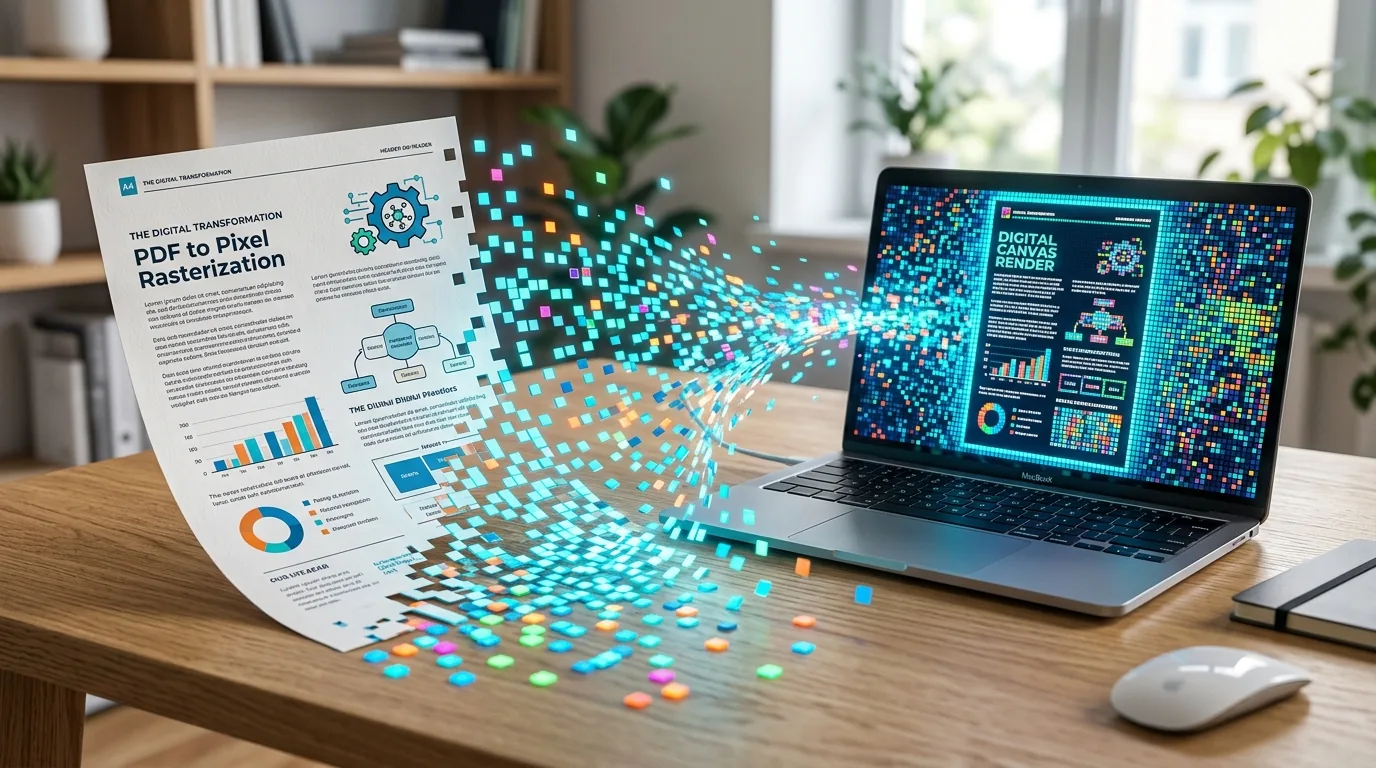
Because the page becomes pixels, the text stops being text. You can't select, search, or copy it, and links stop working. If you still need those features later, keep the original PDF next to your images.
“Converting gives you a picture of the page, not the page itself.”
PixForgeStudio does this rendering in your browser with JavaScript and WebAssembly. No server takes part, which is why a pdf to image converter can run without uploads or accounts.
When converting makes sense
Most people reach for a pdf image converter for a handful of practical reasons. The table shows the common ones.
| Your goal | Why an image helps |
|---|---|
| Add a page to a slide deck | PowerPoint and Google Slides accept JPG and PNG directly |
| Meet an upload form's rules | Many forms accept only image files |
| Send a page by text or chat | Messaging apps preview images instantly |
| Post a page online | Social platforms and blogs expect images, not PDFs |
| Pull out a single page | You save only the page you need from a long file |
Not every job calls for it. When the recipient must edit, search, or copy the content, send the PDF instead. When they only need to look at it, an image is usually lighter and easier to open on any phone or computer.
1Step 1. Choose JPG or PNG for your PDF
Start by picking the output format, because every pdf file to image converter asks for it first. The choice changes your file size and your text sharpness, so it deserves ten seconds of thought before you click anything.
JPG vs PNG at a glance
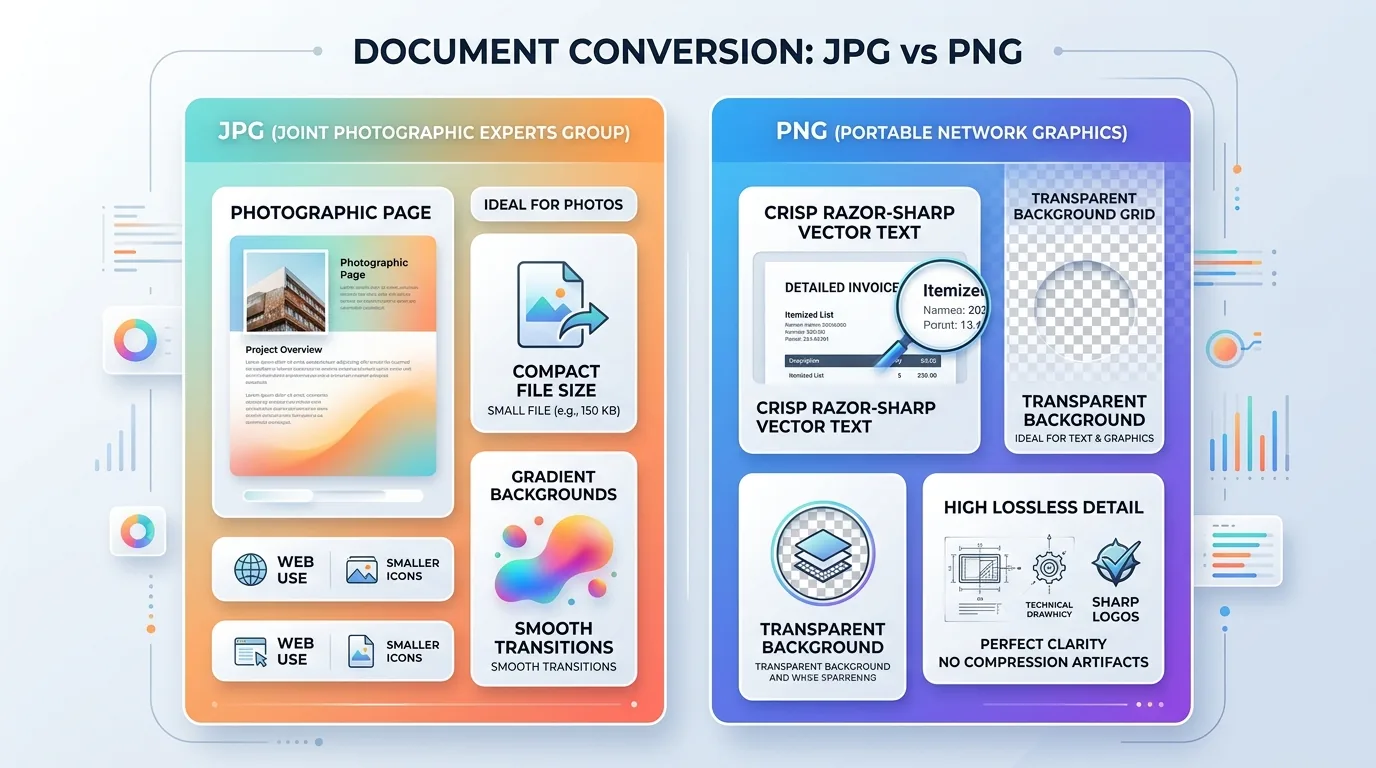
| Feature | JPG | PNG |
|---|---|---|
| Best for | Photos, scanned pages | Text, charts, logos |
| File size | Smaller | Larger |
| Quality | Lossy, can blur small text | Lossless, crisp edges |
| Transparency | No | Yes |
JPG shrinks files by discarding detail you rarely notice in a photo, but it can leave faint fuzz around small type. PNG keeps every pixel, so text stays crisp, though a page can come out several times larger than the same page as a JPG.
“Pick PNG for text and charts, and JPG for photos and scans.”
A simple rule to follow
- Contract, slide, or invoice: choose PNG.
- Scanned page or photo-heavy brochure: choose JPG.
- Dozens of pages to email: start with JPG to keep the total size down.
If you're still unsure, convert one page both ways and compare them. In a converter pdf to image tool that runs in your browser, this takes seconds and nothing gets uploaded. Zoom in on the smallest text, and if it looks fuzzy, switch to PNG. If your extracted JPGs are still too large for email attachments or upload limits, you can run them through our free browser image compressor to trim file size without losing visual clarity.
2Step 2. Open the converter and add your PDF
Now you get your file into the tool. This takes under a minute and needs no account and no install. Any current browser on a desktop, iPhone, or Android phone will do.
Find the converter
Open PixForgeStudio and use the search bar or the PDF category to reach the pdf converter to image tool. It takes three steps:
- Go to pixforgestudio.com.
- Type "PDF to image" in the search bar, or browse the PDF tools.
- Click the tool to open it, or jump straight to the PDF to Image Converter.
Add your PDF
Drag your file onto the upload area, or click the area to browse your folders. On a phone, tap it and pick the PDF from your Files app or your downloads folder. The tool should then show the pages, so you can confirm the document before you go on.
Because everything runs locally, loading is fast even for a large file. Your browser reads the PDF straight from your device, so nothing is uploaded and there is no queue on a server. That is the main reason this works for contracts, IDs, and statements.
“Your PDF is opened by your browser, not sent anywhere.”
3Step 3. Set the quality and pick your pages
Before you press convert, check two settings: resolution and page selection. Getting both right now saves you from running the job a second time.
Choose a resolution
Resolution decides how sharp your text looks, and it is measured in DPI. Match it to where the image will end up:
| Where the image goes | DPI to use |
|---|---|
| Chat, email, web, slides | 96 to 150 DPI |
| Printing, or pages with small type | 300 DPI |
Higher is not always better. A letter-size page at 300 DPI is about 2550 by 3300 pixels, so the file grows quickly and can be too big for an upload form. If you pick the lower end for screen use, you get smaller files that still read clearly.
“Use 150 DPI for screens and 300 DPI for print.”
Pick your pages
Not every page needs converting. In your pdf file to image converter, you can usually choose all pages, a single page, or a range such as 3 to 5. Say you have a 40-page report and need only one chart. Select that page alone, and you get one file instead of 40 to sort through.
Converting only what you need also speeds up the job and keeps your downloads folder tidy. If you have an oversized multi-chapter document and want to break it apart before converting, you can also use our free client-side PDF splitter to isolate chapters into separate PDF files. If you are unsure which page you want, scroll through the previews first and note the page number before you set the range.
4Step 4. Convert, preview, and download your images
Run the conversion and check the preview
Click the convert button and give it a few seconds. Your browser renders each page locally, so even a long file finishes without an upload bar. Before you save anything, zoom in on the smallest text in your pdf file to image converter's preview and check three things:
- The text is sharp, not fuzzy.
- The pages are in the right order.
- Nothing is cut off at the edges.
Download your images
Once the preview looks right, save a single page on its own or take all pages at once. A multi-page file may arrive as a ZIP archive, so unzip it before you attach the images to an email or a slide deck. Need to assemble those extracted images back into a polished document later? You can easily compile them with our free image to PDF converter without ever uploading files to a cloud server. Then rename the files with page numbers, like contract-01.png, so they sort correctly.
“Check the preview first, and you only have to convert once.”
Fix common problems
Most problems come down to one setting. Change it, convert again, and compare the result with the first attempt.
| Problem | Fix |
|---|---|
| Blurry or fuzzy text | Raise the resolution to 300 DPI, or switch from JPG to PNG |
| File too large for a form or email | Lower the resolution to 150 DPI, or switch from PNG to JPG |
| Wrong pages in the output | Reset the page range and convert again |
Ready to turn your PDF into images
Converting a PDF takes four moves. Pick JPG or PNG, add your file, set the resolution and pages, then preview and download. Use PNG for text and charts, JPG for photos and scans, and 150 DPI for screens or 300 DPI for print.
Because a good pdf file to image converter runs in your browser, you never trade privacy for convenience. Nothing is uploaded, nothing is watermarked, and no account is needed. That holds for a lunch menu and for a signed contract alike.
Your next PDF is one click away from becoming a picture. Open the free PDF to image converter at PixForgeStudio, drop in your file, and get your JPG or PNG pages in seconds. Converting photos on mobile instead? Read our complete step-by-step tutorial on converting photos to PDF on iPhone with zero cloud uploads. Keep the original PDF handy in case you need to edit or search it later.
Try the Free PDF to Image Converter Now
Extract single pages or entire multi-page documents as crisp JPG or PNG images. 100% private in your browser.
Explore All 140+ Free Tools
PixForgeStudio offers 140+ free browser-based tools: PDF editor & viewer, image compressor, video trimmer, audio transcriber, converters, and calculators. 100% private — zero file uploads.
Browse All Tools