Merge PDF Document: How to Combine PDF Files for Free (No Upload, No Signup)
Merge PDF documents into one file in seconds. Reorder pages, combine unlimited PDFs, and download free. Files stay on your device. No signup.
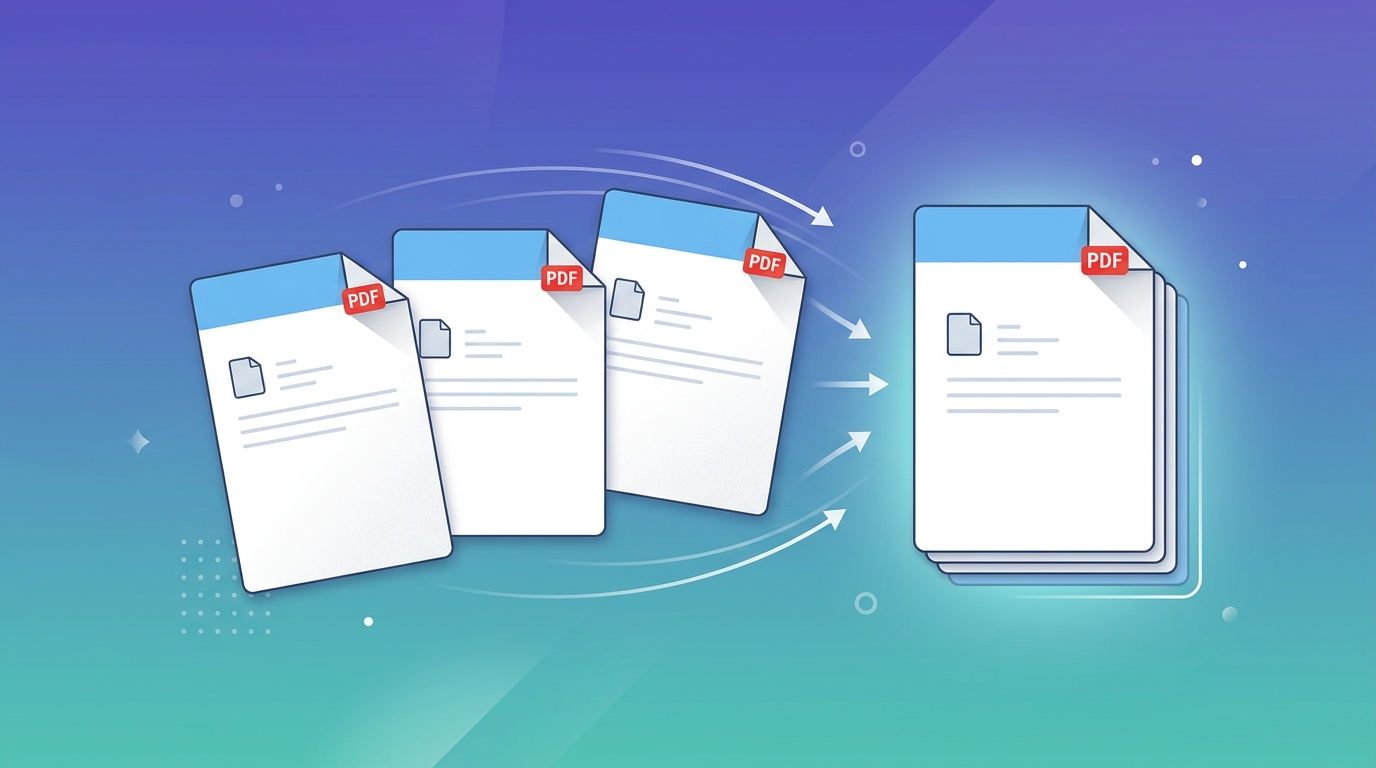
You have a contract in one file, the signed page in another, and a scanned ID in a third. Sending three separate attachments looks disorganized and unprofessional. The fix is to merge your PDF documents into a single file, in the exact order you choose.
This guide shows how to merge PDFs for free in your browser, how to combine files on Mac, Windows, and mobile devices, and how to avoid common pitfalls like mismatched page orders, bloated file sizes, and privacy risks from uploading sensitive legal paperwork to remote servers.
How to merge a PDF document in 4 steps
With a browser-based PDF merger, documents are assembled entirely on your own machine without remote server uploads:
Add Your Files
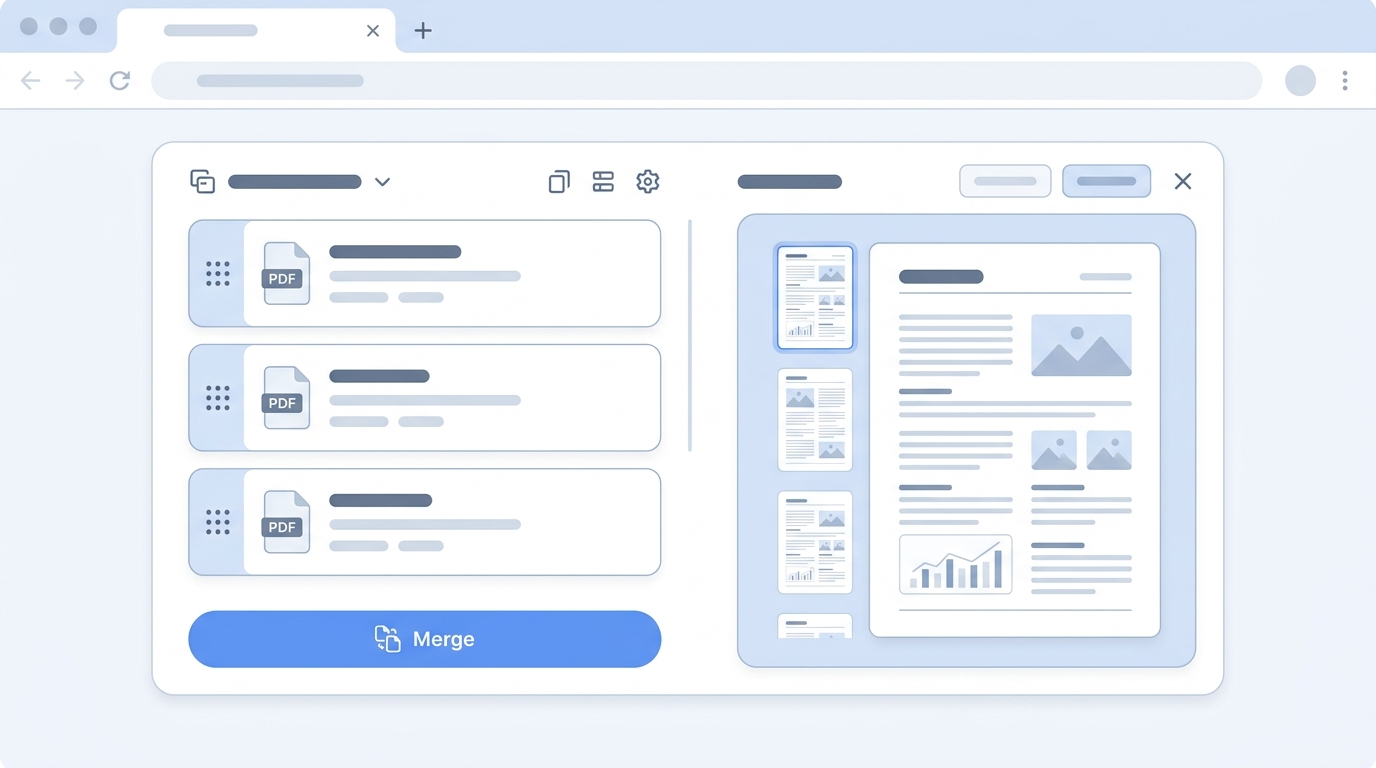
Open the merge PDF tool and drag in your PDF documents, or click to select them from your file manager.
Arrange Page Order
Drag and drop file cards up or down to arrange them into your preferred sequence.
Click Merge
Hit the Merge button. The tool combines all pages, vector fonts, and images into one consolidated file in milliseconds.
Download Combined PDF
Save your merged PDF to your device with a clear descriptive filename.
Pro tip: Prefix your filenames with numeric labels (e.g., 01-cover.pdf, 02-contract.pdf, 03-appendix.pdf). Many file pickers automatically order alphabetically, saving you manual reordering steps.
Why merge PDFs without uploading them?
Many popular online PDF mergers upload your documents to third-party cloud servers. While harmless for public brochures, it poses severe compliance and privacy risks for sensitive files:
- Commercial contracts, non-disclosure agreements (NDAs), and legal briefs
- Tax filings, financial statements, and confidential bank records
- Passports, driver's licenses, medical records, and social security forms
- Unpublished research, proprietary client data, and patent filings
A tool that executes 100% locally in your browser eliminates leak liabilities. It is also significantly faster because you never wait for megabytes of file uploads and downloads over slow connections.
Ways to merge PDFs: which one is right for you?
| Method | Cost | Privacy | Best For | Limitations |
|---|---|---|---|---|
| Browser-based merge (PixForge) | Free, unlimited | 100% Local (no upload) | Fast, private merges on any device | Very large batches (>500MB) depend on device RAM |
| Cloud merge websites | Limited free / paid tiers | Uploaded to cloud | Casual non-sensitive public documents | File size caps, queue delays, paywalls |
| Mac Preview App | Free (macOS built-in) | Local on Mac | Combining 2–3 documents quickly on macOS | Tedious drag-and-drop for many files; Mac only |
| Free desktop software (PDFsam) | Free basic tier | Local on computer | Heavy daily enterprise bulk operations | Requires desktop installation and admin privileges |
| Adobe Acrobat Pro | $20–30/month | Local / Creative Cloud | Full document design, form authoring, OCR | Expensive recurring subscription for simple merges |
How to Combine PDF Files Across Devices
How do you combine PDF files on a Mac?
macOS includes an integrated merge feature inside the native Preview application:
- Open the first PDF document in Preview.
- Enable the sidebar: choose View → Thumbnails.
- Select a page thumbnail, then go to Edit → Insert → Page from File… and choose the next PDF file.
- Drag page thumbnails up or down in the sidebar to reorganize order.
- Save your combined work via File → Export as PDF…
How do you merge PDFs on Windows?
Windows File Explorer does not have a native PDF merge tool. Rather than buying expensive software like Adobe Acrobat, using PixForgeStudio in Microsoft Edge, Google Chrome, or Firefox combines files in seconds without installing extra software or printer drivers.
How do you merge PDFs on iPhone or Android?
Open the PixForgeStudio merge tool in mobile Safari or Chrome. Select files directly from your iCloud Drive, Google Drive, or local storage. If your documents are camera photos or receipts, convert them first using our iPhone image to PDF converter.
How to merge PDFs the right way: best practices
| Common Issue | Recommended Solution |
|---|---|
| Pages appear in the wrong order | Number your source files or use drag-and-drop handles in the merge tool prior to clicking Merge. |
| Mixed page sizes (e.g. A4 and US Letter) | The merger retains exact original page dimensions so vectors remain crisp; select "Fit to Page" when printing. |
| Combined file is too large for email | Compress large image scans prior to combining to stay under the 20–25 MB email attachment threshold. |
| Password-protected document error | Unlock the file with its authorized password before importing into the merger. |
| Only need specific pages | Extract or split out the target pages first, then merge the clean extracts into your bundle. |
| Scanned pages are upside down or sideways | Rotate individual pages in the viewer before exporting the consolidated document. |
Merge, split, and extract go hand in hand
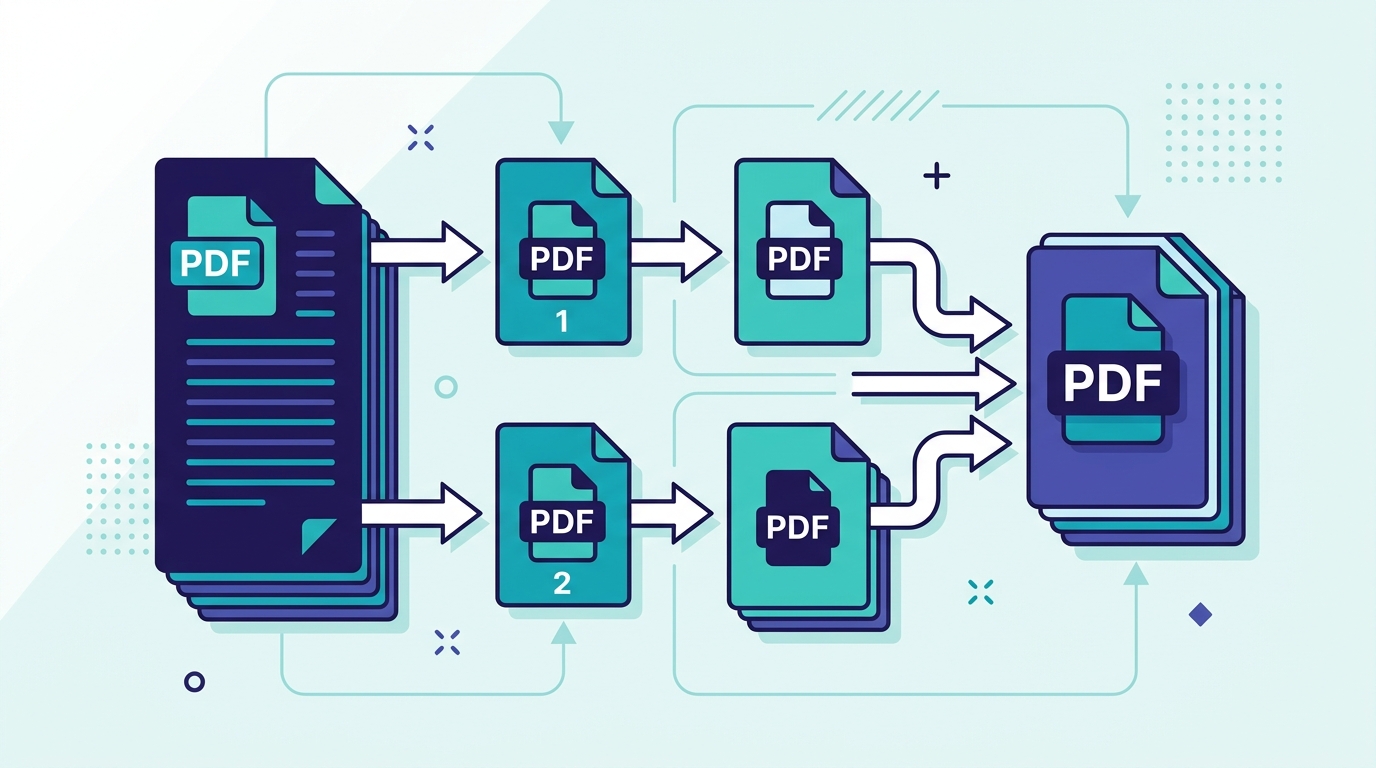
A PDF merge splitter workflow is one of the most common document tasks: split out the exact pages you need from a long report or tax return, then merge them with an agreement or signed cover letter. If you need individual pages as image proofs, read our guide to the PDF file to image converter.
Frequently asked questions
Is it safe to merge PDF documents online?
With a client-side tool like PixForgeStudio, yes. Files are processed entirely in your device's local browser memory and are never uploaded to any remote server, keeping confidential paperwork 100% private.
Is there a limit to how many PDFs I can merge?
There is no artificial file limit in our browser tool. Merges are performed directly using WebAssembly on your device, allowing you to combine dozens of files at once.
Will merging reduce the quality of my PDF?
No. Merging combines existing PDF page streams without re-compressing them. Vector typography stays pin-sharp and high-resolution photos retain original fidelity.
Can I merge PDFs and images together?
Convert your photos to PDF first using our Image to PDF converter, then merge them into your PDF package in the desired order.
Can I change the order of pages after merging?
Yes. You can drag and reorder files before combining, or re-open the merged PDF in our organizer tool to reposition individual pages.
Do I need to create an account?
No account, registration, or credit card is ever required. Merging is instant and 100% free with no watermarks.
Merge your PDF documents now
Combining PDFs should take seconds, not an account sign-up. Drag in your files, set the order, and download one clean, organized PDF.
Explore All 140+ Free Tools
PixForgeStudio offers 140+ free browser-based tools: PDF editor & viewer, image compressor, video trimmer, audio transcriber, converters, and calculators. 100% private — zero file uploads.
Browse All Tools