Split PDF to PDF: How to Split a PDF into Separate Files for Free
Split a PDF into separate PDF files by page range, every N pages, or selected pages. Free, no signup, files stay on your device. Download in seconds.
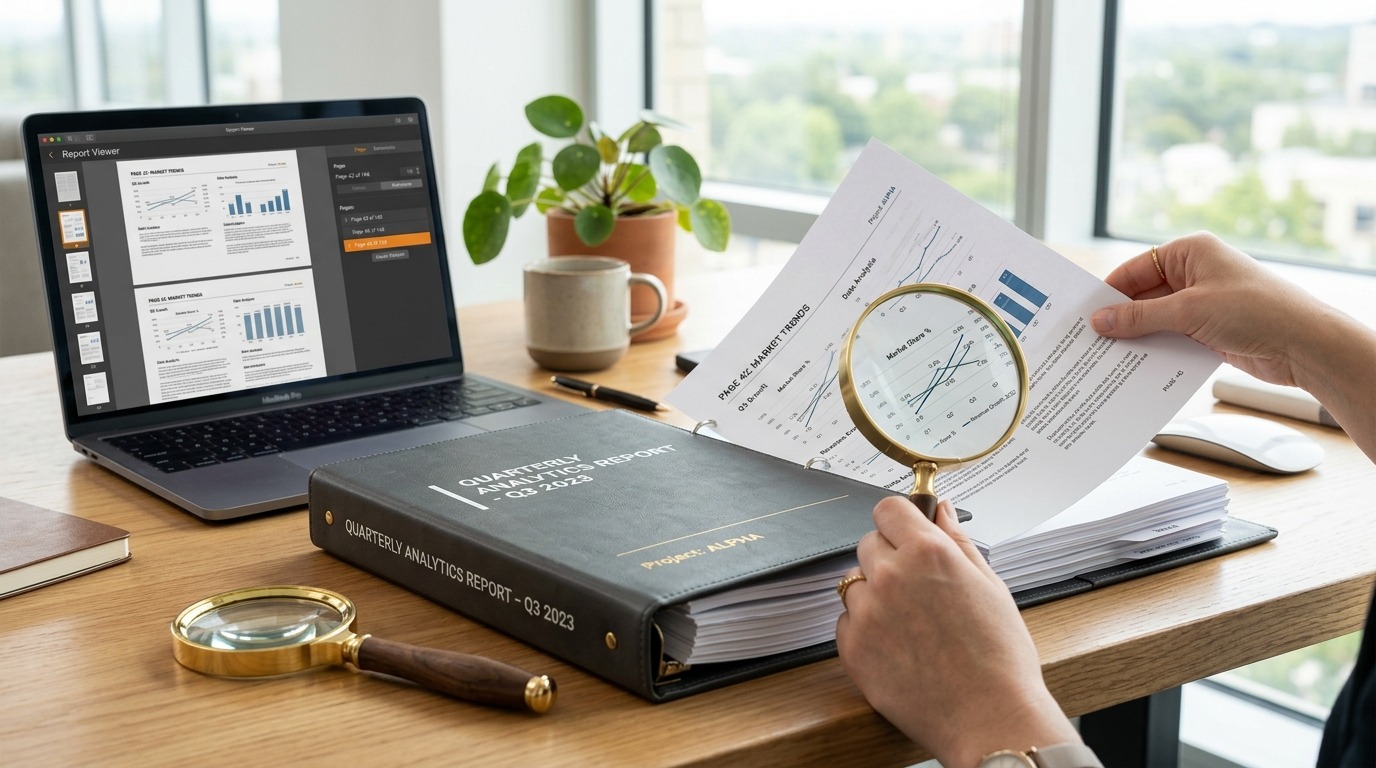
Use the Free Split PDF Tool Now
Prefer to get straight to work? Skip the guide and use PixForgeStudio's free client-side tool directly on your device with zero cloud uploads and instant processing.
To split a PDF into separate PDF files, open your file in a PDF splitter, choose which pages to keep, and download the new files. You can split by page range (for example pages 1 to 3), split every N pages, or extract only the pages you need.
This guide covers each split mode, how to do it on Mac and Windows without extra software, and how to avoid common problems.
PixForgeStudio Split PDF
100% Free • In-BrowserExtract pages from a PDF or split it into multiple files.
How to split a PDF in 4 steps
A browser-based splitter processes the file entirely on your own device, so private documents, bank statements, or confidential agreements are never sent across the internet to a third-party server.
Open the tool & drop file
Drop in your multi-page PDF into the browser splitter. The file loads instantly in your local memory.
Choose your split mode
Select between page ranges, extracting chosen pages into one file, or splitting every N pages into equal parts.
Enter page numbers
Type your desired range syntax such as 1-3, 5, 8-10, or choose individual page thumbnails.
Split and download
Click Split to generate the new PDF files instantly, or download all generated parts together as a clean ZIP archive.
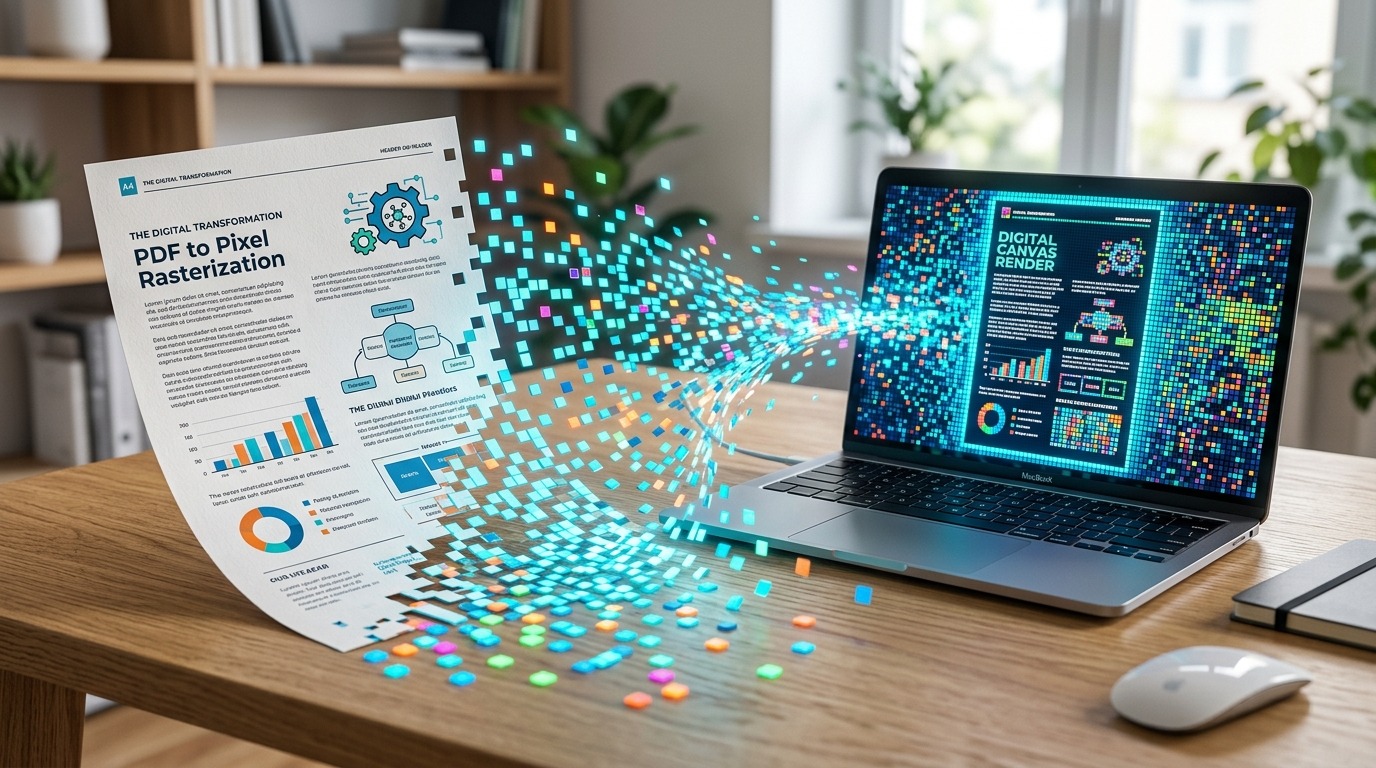
Selecting page ranges and split modes inside the local browser-based PDF splitter.
Split modes: which one do you need?
Depending on what you want to extract or send, different split strategies save time and prevent document clutter:
| Split Mode | What It Does | Best For |
|---|---|---|
| By page range | Pulls pages like 1-3 and 8-10 into new separate files | Sending only relevant sections to specific recipients |
| Extract selected pages | Saves chosen pages as one combined new PDF | Grabbing a single contract page, tax schedule, or invoice |
| Every N pages | Cuts the PDF into equal chunks of N pages each | Batches of scanned multi-page forms, quizzes, or statements |
| Single pages | Makes one PDF per individual page | Separating scanned receipts, certificates, or flashcards |
| By bookmarks / chapters | Splits at each top-level outline or bookmark heading | Long academic reports, manuals, and e-books |
| By file size | Creates parts that each stay strictly under a target MB threshold | Email size limits (e.g. 25 MB) and government portal upload caps |
Page range syntax explained
Use commas to separate distinct groups and a hyphen for continuous spans. For example: 1-3, 7, 10-12 creates a PDF containing pages 1, 2, 3, 7, 10, 11, and 12 in order, skipping all other pages.
Worked example: splitting a 12-page document
Suppose you receive a 12-page contract packet and only need to deliver specific sections to external vendors or clients:
| Goal | Pages to Enter | Output Result |
|---|---|---|
| Send the executive summary | 1-2 | One clean 2-page PDF file |
| Send signature & sign-off pages | 11-12 | One clean 2-page sign-off PDF |
| Remove a draft page (page 6) | 1-5, 7-12 | One 11-page final PDF without page 6 |
| Cut into 3-page quarterly chunks | Every 3 pages | Four separate 3-page PDFs |
How to extract pages in a PDF
"Extract" means selecting specific pages and saving them into a fresh new PDF while leaving the original master document completely intact and unmodified.
- Open the splitter: Drop your multi-page document into PixForgeStudio Split PDF tool.
- Choose Extract pages: Enter the page numbers or click thumbnails you wish to isolate.
- Download the new PDF: Click download to get your targeted document in seconds.
Need those extracted pages saved as standalone high-resolution images rather than PDF documents? Check out our dedicated guide to the PDF file to image converter.
How to split a PDF on Mac and Windows without installing software
On macOS (Apple Preview)
- Open the PDF in the native Preview app.
- Enable thumbnail sidebar via View → Thumbnails.
- Select the specific pages you need (hold Cmd to pick multiple).
- Drag the selected thumbnails out directly onto your Desktop to instantly create a new PDF.
- Alternatively, delete unwanted pages and click File → Export as PDF.
Preview is great for a couple of pages, but lacks batch range syntax for complex splits.
On Windows 10/11 (Chrome or Edge)
- Open the PDF inside your web browser (Chrome or Edge).
- Press Ctrl + P to launch Print.
- Change the Destination dropdown to Save as PDF.
- Under Pages, choose Custom and enter your range (e.g.
3-5). - Click Save to generate the sliced PDF file.
Windows Print to PDF works for one range at a time, but cannot generate separate files simultaneously.
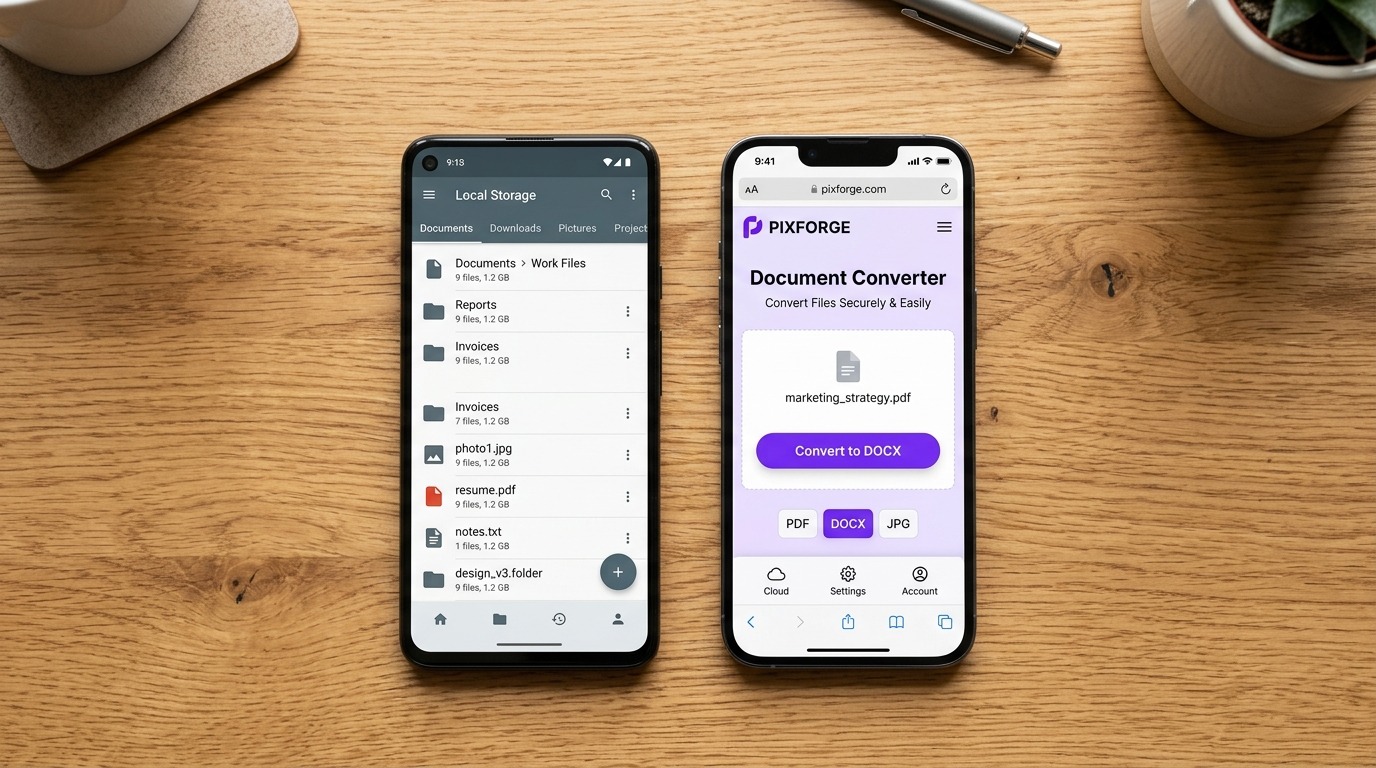
Comparing native operating system split methods on Mac, Windows, and modern browsers.
PDF split software vs. browser tool: which is better?
Here is a detailed comparison of your primary choices when splitting or extracting PDF pages:
| Option | Cost | Privacy | Best For | Limits |
|---|---|---|---|---|
| Browser-based splitter (PixForgeStudio) | 100% Free | Zero upload; file stays on your device | Quick everyday splits, multi-range extraction | Depends on device RAM for files > 500 MB |
| Free desktop software (PDFsam Basic) | Free | Local on disk | Frequent, rule-based splitting, bookmark splits | Requires Java/installation, dated user interface |
| Mac Preview | Built-in | Local on disk | A few quick pages on macOS | Manual dragging, no range syntax parsing |
| Browser print to PDF | Built-in | Local on disk | One page range on any operating system | Can only produce one file at a time |
| Upload-based cloud sites | Freemium | Uploaded to cloud server | Non-sensitive public documents | Daily limits, queues, potential privacy exposure |
| Paid editors (Adobe Acrobat Pro) | $19.99/mo | Local on disk | Full PDF editing, OCR, prepress production | Expensive subscription overkill for splitting only |
Looking for software to combine files instead? See our full guide on how to merge PDF documents and our roundup of the best free PDF merge software. Many professionals adopt a combined PDF merge splitter workflow: extract the critical contract pages first, then merge them directly with new attachments into a single polished submission.
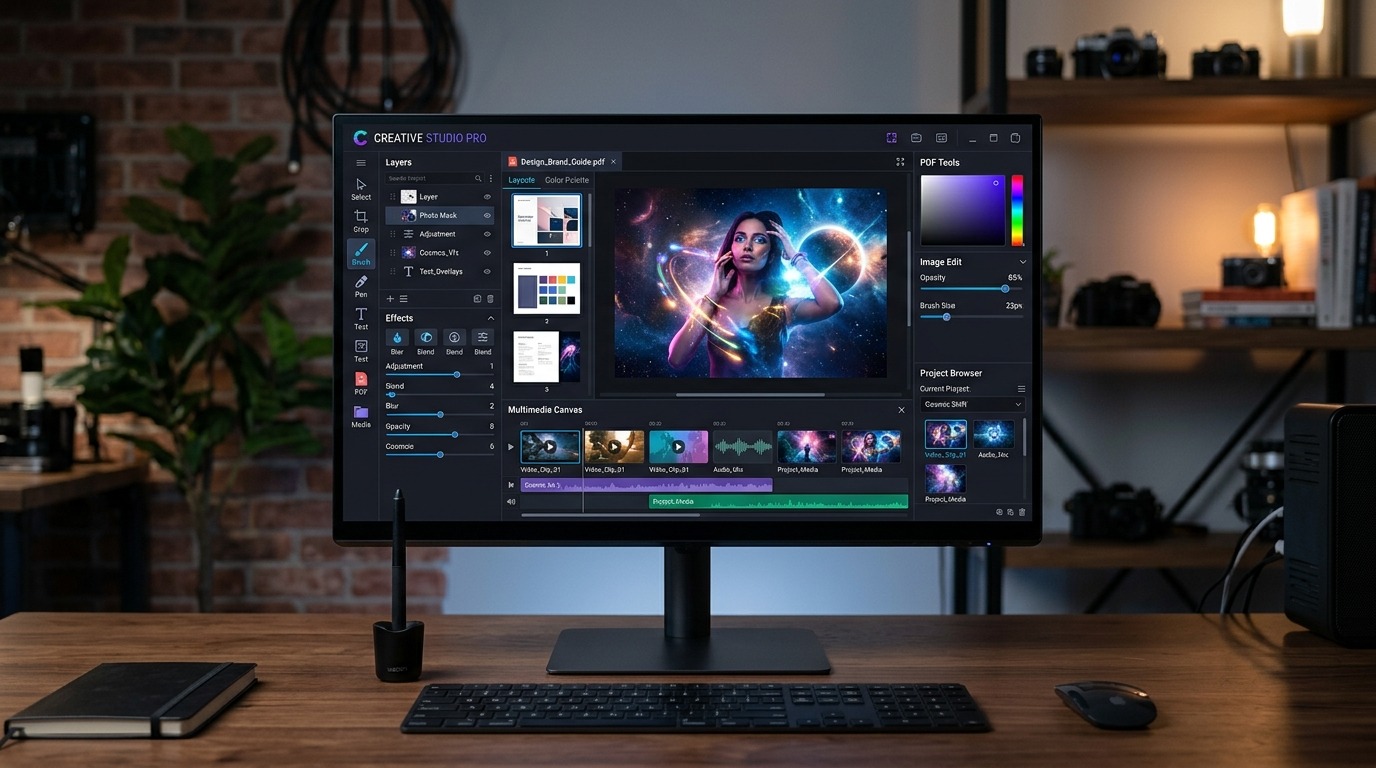
A split-and-merge workflow isolates relevant pages before combining them with secondary attachments.
Common problems when splitting PDFs & how to fix them
| Problem | Why It Happens | How to Fix |
|---|---|---|
| File is password-protected | Splitting needs access to parse the page dictionary | Unlock the document first with the owner password before splitting |
| Split files sum to more than the original | Embedded fonts and shared metadata are replicated in each split file | Normal behavior. Run the resulting files through a PDF compressor if needed |
| Wrong pages extracted | Printed folio numbers differ from physical PDF page index (e.g. roman numerals in preface) | Count the physical page position from 1, not the printed page number in the header |
| Scanned pages are sideways | Rotation metadata is stored per-page | Use a PDF rotator to standardize orientation before or after splitting |
| Bookmarks or links are missing | Standard splitting engines discard outline trees to prevent broken links | Use a full desktop editor like PDFsam or Acrobat if internal hyperlinks are vital |
| Output is too large for email | High-DPI scanned color images consume major file space | Split into smaller chapters or compress images to stay under the 25 MB attachment cap |
Frequently asked questions
How do I split a PDF into separate PDF files?
Open a PDF splitter, choose the pages or the split mode, and download the new files. In a browser tool like PixForgeStudio, this takes a few seconds, requires no account, and keeps all data on your device.
Does splitting a PDF reduce quality?
No. Splitting copies existing page data streams and embedded objects without recompressing them. Text vectors, embedded fonts, and photographs keep 100% of their original visual sharpness and resolution.
How do I extract pages from a PDF?
Choose the extract option, enter the specific pages you want (such as 2, 5-7), and download the new PDF. The original PDF file remains unchanged.
Can I split a PDF without software?
Yes. A browser-based web tool requires nothing to install. On Mac you can drag page thumbnails out of Apple Preview, and on Windows you can use the built-in browser "Print to PDF" feature with a custom page range.
Is it safe to split a PDF online?
It depends on the tool. Upload-based websites transfer your document across the internet to a remote server. In contrast, PixForgeStudio executes WebAssembly and JavaScript locally in your browser session—your file never leaves your machine.
Can I split a password-protected PDF?
You must unlock the document with its valid password first. Once unlocked, the page structure can be parsed and split into separate files.
What is the difference between split and extract?
Splitting typically divides an entire document into multiple separate files (e.g. cutting into 2-page chunks or single pages). Extracting isolates a specific set of pages into a single new document while ignoring the rest.
Split your PDF now
Drop in your file, enter your desired page range, and download clean separate PDFs in seconds. 100% free, private, and watermark-free.
PixForgeStudio Split PDF
100% Free • In-BrowserExtract pages from a PDF or split it into multiple files.
Explore All 140+ Free Tools
PixForgeStudio offers 140+ free browser-based tools: PDF editor & viewer, image compressor, video trimmer, audio transcriber, converters, and calculators. 100% private — zero file uploads.
Browse All Tools